# DevTools
> 学习在开发 Flutter 应用时使用 Dart DevTools。
Learn to use the widget inspector and property editor to debug layout issues
and experiment with properties in real-time.
学习使用 widget 检查器和属性编辑器来调试布局问题,
并实时试验属性。
title: 你将完成的内容
items:
- title: 使用 widget 检查器探索应用的 widget 树
icon: account_tree
- title: 学习调试无界约束等布局问题
icon: bug_report
- title: 实时试验属性
icon: tune
---
### 简介
As your Flutter app grows in complexity, it becomes more important
to understand how each of the widget properties affects the UI.
The [Dart and Flutter DevTools][] provide you with
two particularly useful features:
the **widget inspector** and the **property editor**.
随着 Flutter 应用日益复杂,理解各个 widget 属性如何影响 UI 变得越来越重要。
[Dart 和 Flutter DevTools][Dart and Flutter DevTools] 为你提供了
两个特别实用的功能:
**widget 检查器** 和 **属性编辑器**。
First, launch DevTools by running the following commands while
your app is running in debug mode.
Run this command in a **separate terminal window**
from where your app is running:
首先,在应用以调试模式运行时,通过运行以下命令启动 DevTools。
请在 **与应用运行位置不同的终端窗口** 中
运行此命令:
```console
$ dart devtools
```
Running this command starts the DevTools server and
opens the interface in a browser.
运行此命令会启动 DevTools 服务器,
并在浏览器中打开界面。
To connect DevTools to your running app:
要将 DevTools 连接到你正在运行的应用:
1. Find the DevTools URL printed in the terminal
where your app is running (for example:
`Serving DevTools at http://127.0.0.1:9101`).
在运行应用的终端中找到打印的 DevTools URL
(例如:`Serving DevTools at http://127.0.0.1:9101`)。
2. Copy this URL.
复制此 URL。
3. Paste it into the connect bar in the DevTools browser page.
将其粘贴到 DevTools 浏览器页面的连接栏中。
:::note 在 IDE 中运行
Provided you have the appropriate Flutter plugin installed,
you can also run DevTools directly inside
Code OSS-based editors such as [VS Code][] as well as
[IntelliJ and Android Studio][].
The screenshots in this lesson are from VS Code.
如果你已安装相应的 Flutter 插件,
你也可以直接在
基于 Code OSS 的编辑器(例如 [VS Code][])以及
[IntelliJ 和 Android Studio][IntelliJ and Android Studio] 中运行 DevTools。
本课中的截图来自 VS Code。
:::
[Dart and Flutter DevTools]: /tools/devtools
[VS Code]: /tools/vs-code
[IntelliJ and Android Studio]: /tools/android-studio
### widget 检查器
The widget inspector allows you to visualize and explore your widget tree.
It helps you understand the layout of your UI and
identifies which widgets are responsible for different parts of the screen.
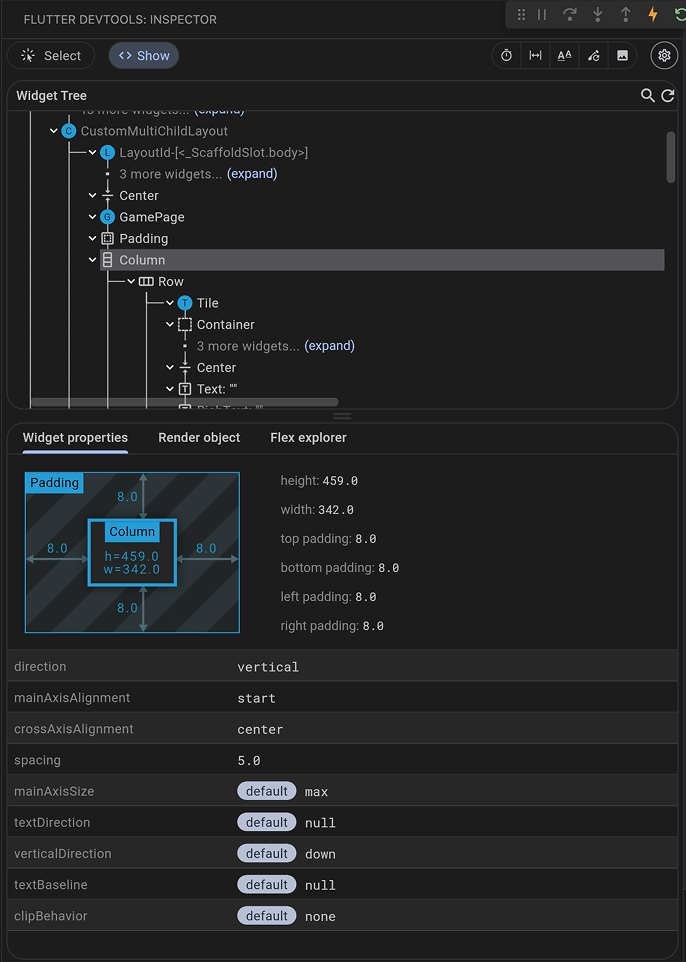
Running against the app you've built so far, the inspector looks like this:
widget 检查器让你可视化和探索 widget 树。
它帮助你理解 UI 的布局,
并识别哪些 widget 负责屏幕的不同部分。
针对你目前构建的应用运行后,检查器如下所示:
 Consider the `GamePage` widget you created in this section:
考虑你在本节中创建的 `GamePage` widget:
```dart
class GamePage extends StatelessWidget {
GamePage({super.key});
final Game _game = Game();
@override
Widget build(BuildContext context) {
return Padding(
padding: const EdgeInsets.all(8.0),
child: Column(
spacing: 5.0,
children: [
for (var guess in _game.guesses)
Row(
spacing: 5.0,
children: [
for (var letter in guess) Tile(letter.char, letter.type)
]
),
],
),
);
}
}
```
And how it's used in `MainApp`:
以及它在 `MainApp` 中的用法:
```dart
class MainApp extends StatelessWidget {
const MainApp({super.key});
@override
Widget build(BuildContext context) {
return MaterialApp(
home: Scaffold(
body: Center(child: GamePage()),
),
);
}
}
```
In the widget inspector, you should see a tree of
exactly the same widgets that are in your code:
`MaterialApp` as the root, with `Scaffold` as its `home`,
an `AppBar` as its `appBar`, and so on down the entire tree to
the `Row` widgets with `Tile` children.
You can select any widget in the tree to see its properties and
even jump to its source code in your IDE.
在 widget 检查器中,你应该能看到与代码中
完全相同的 widget 树:
以 `MaterialApp` 为根,以 `Scaffold` 作为其 `home`,
以 `AppBar` 作为其 `appBar`,以此类推,一直到
带有 `Tile` 子级的 `Row` widget。
你可以在树中选择任意 widget 以查看其属性,
甚至跳转到 IDE 中的对应源代码。
### 调试布局问题
The widget inspector is perhaps most useful for debugging layout issues.
widget 检查器或许在调试布局问题时最为实用。
In certain situations,
a widget's [constraints][] are unbounded, or infinite.
This means that either
the maximum width or the maximum height is set to [`double.infinity`][].
A widget that tries to be as big as possible won't function usefully when
given an unbounded constraint and, in debug mode, throws an exception.
在某些情况下,
widget 的 [约束][constraints] 是无界的,即无限的。
这意味着
最大宽度或最大高度被设置为 [`double.infinity`][]。
当给定无界约束时,试图尽可能大的 widget 无法正常工作,
并且在调试模式下会抛出异常。
The most common case where a render box ends up with an unbounded
constraint is within a flex box widget ([`Row`][] or [`Column`][]),
and within a scrollable region,
such as a [`ListView`][] or [`ScrollView`][] subclasses.
渲染 box 最终获得无界约束的最常见情况
出现在 flex box widget([`Row`][] 或 [`Column`][])内,
以及可滚动区域内,
例如 [`ListView`][] 或 [`ScrollView`][] 子类。
`ListView`, for example, tries to expand to
fit the space available in its cross-direction. Such as if
it's a vertically scrolling block that tries to be as wide as its parent.
If you nest a vertically scrolling `ListView` inside
a horizontally scrolling `ListView`, the inner list tries to
be as wide as possible, which is infinitely wide, since the
outer one is scrollable in that direction.
例如,`ListView` 会尝试扩展以
适应其交叉方向上的可用空间。比如
它是一个垂直滚动的块,试图与其父级一样宽。
如果你将垂直滚动的 `ListView` 嵌套在
水平滚动的 `ListView` 内,内部列表会尝试
尽可能宽,而由于
外部列表在该方向上可滚动,因此宽度是无限的。
Perhaps the most common error you'll run into while
building a Flutter application is due to incorrectly using layout widgets.
This error is referred to as the "unbounded constraints" error.
或许你在构建 Flutter 应用时
最常遇到的错误是由于不正确地使用布局 widget。
此错误被称为「无界约束」错误。
Watch the following video to get an understanding of how to
spot and resolve this issue.
观看以下视频,了解如何
发现并解决此问题。
[constraints]: /ui/layout/constraints
[`double.infinity`]: https://api.flutter-io.cn/flutter/dart-core/double/infinity-constant.html
[`Column`]: https://api.flutter-io.cn/flutter/widgets/Column-class.html
[`Row`]: https://api.flutter-io.cn/flutter/widgets/Row-class.html
[`ListView`]: https://api.flutter-io.cn/flutter/widgets/ListView-class.html
[`ScrollView`]: https://api.flutter-io.cn/flutter/widgets/ScrollView-class.html
### 属性编辑器
When you select a widget in the widget inspector,
the property editor displays all the properties of that selected widget.
This is a powerful tool for understanding why a widget looks the way it does and
for experimenting with property value changes in real-time.
当你在 widget 检查器中选择一个 widget 时,
属性编辑器会显示该所选 widget 的所有属性。
这是一个强大的工具,用于理解 widget 为何呈现当前外观,
并实时试验属性值的更改。
Consider the `GamePage` widget you created in this section:
考虑你在本节中创建的 `GamePage` widget:
```dart
class GamePage extends StatelessWidget {
GamePage({super.key});
final Game _game = Game();
@override
Widget build(BuildContext context) {
return Padding(
padding: const EdgeInsets.all(8.0),
child: Column(
spacing: 5.0,
children: [
for (var guess in _game.guesses)
Row(
spacing: 5.0,
children: [
for (var letter in guess) Tile(letter.char, letter.type)
]
),
],
),
);
}
}
```
And how it's used in `MainApp`:
以及它在 `MainApp` 中的用法:
```dart
class MainApp extends StatelessWidget {
const MainApp({super.key});
@override
Widget build(BuildContext context) {
return MaterialApp(
home: Scaffold(
body: Center(child: GamePage()),
),
);
}
}
```
In the widget inspector, you should see a tree of
exactly the same widgets that are in your code:
`MaterialApp` as the root, with `Scaffold` as its `home`,
an `AppBar` as its `appBar`, and so on down the entire tree to
the `Row` widgets with `Tile` children.
You can select any widget in the tree to see its properties and
even jump to its source code in your IDE.
在 widget 检查器中,你应该能看到与代码中
完全相同的 widget 树:
以 `MaterialApp` 为根,以 `Scaffold` 作为其 `home`,
以 `AppBar` 作为其 `appBar`,以此类推,一直到
带有 `Tile` 子级的 `Row` widget。
你可以在树中选择任意 widget 以查看其属性,
甚至跳转到 IDE 中的对应源代码。
### 调试布局问题
The widget inspector is perhaps most useful for debugging layout issues.
widget 检查器或许在调试布局问题时最为实用。
In certain situations,
a widget's [constraints][] are unbounded, or infinite.
This means that either
the maximum width or the maximum height is set to [`double.infinity`][].
A widget that tries to be as big as possible won't function usefully when
given an unbounded constraint and, in debug mode, throws an exception.
在某些情况下,
widget 的 [约束][constraints] 是无界的,即无限的。
这意味着
最大宽度或最大高度被设置为 [`double.infinity`][]。
当给定无界约束时,试图尽可能大的 widget 无法正常工作,
并且在调试模式下会抛出异常。
The most common case where a render box ends up with an unbounded
constraint is within a flex box widget ([`Row`][] or [`Column`][]),
and within a scrollable region,
such as a [`ListView`][] or [`ScrollView`][] subclasses.
渲染 box 最终获得无界约束的最常见情况
出现在 flex box widget([`Row`][] 或 [`Column`][])内,
以及可滚动区域内,
例如 [`ListView`][] 或 [`ScrollView`][] 子类。
`ListView`, for example, tries to expand to
fit the space available in its cross-direction. Such as if
it's a vertically scrolling block that tries to be as wide as its parent.
If you nest a vertically scrolling `ListView` inside
a horizontally scrolling `ListView`, the inner list tries to
be as wide as possible, which is infinitely wide, since the
outer one is scrollable in that direction.
例如,`ListView` 会尝试扩展以
适应其交叉方向上的可用空间。比如
它是一个垂直滚动的块,试图与其父级一样宽。
如果你将垂直滚动的 `ListView` 嵌套在
水平滚动的 `ListView` 内,内部列表会尝试
尽可能宽,而由于
外部列表在该方向上可滚动,因此宽度是无限的。
Perhaps the most common error you'll run into while
building a Flutter application is due to incorrectly using layout widgets.
This error is referred to as the "unbounded constraints" error.
或许你在构建 Flutter 应用时
最常遇到的错误是由于不正确地使用布局 widget。
此错误被称为「无界约束」错误。
Watch the following video to get an understanding of how to
spot and resolve this issue.
观看以下视频,了解如何
发现并解决此问题。
[constraints]: /ui/layout/constraints
[`double.infinity`]: https://api.flutter-io.cn/flutter/dart-core/double/infinity-constant.html
[`Column`]: https://api.flutter-io.cn/flutter/widgets/Column-class.html
[`Row`]: https://api.flutter-io.cn/flutter/widgets/Row-class.html
[`ListView`]: https://api.flutter-io.cn/flutter/widgets/ListView-class.html
[`ScrollView`]: https://api.flutter-io.cn/flutter/widgets/ScrollView-class.html
### 属性编辑器
When you select a widget in the widget inspector,
the property editor displays all the properties of that selected widget.
This is a powerful tool for understanding why a widget looks the way it does and
for experimenting with property value changes in real-time.
当你在 widget 检查器中选择一个 widget 时,
属性编辑器会显示该所选 widget 的所有属性。
这是一个强大的工具,用于理解 widget 为何呈现当前外观,
并实时试验属性值的更改。
 Look at the `Tile` widget's `build` method from earlier:
查看前面 `Tile` widget 的 `build` 方法:
```dart
class Tile extends StatelessWidget {
const Tile(this.letter, this.hitType, {super.key});
final String letter;
final HitType hitType;
@override
Widget build(BuildContext context) {
return Container(
width: 60,
height: 60,
decoration: BoxDecoration(
border: Border.all(color: Colors.grey.shade300),
color: switch (hitType) {
HitType.hit => Colors.green,
HitType.partial => Colors.yellow,
HitType.miss => Colors.grey,
_ => Colors.white,
},
),
);
}
}
```
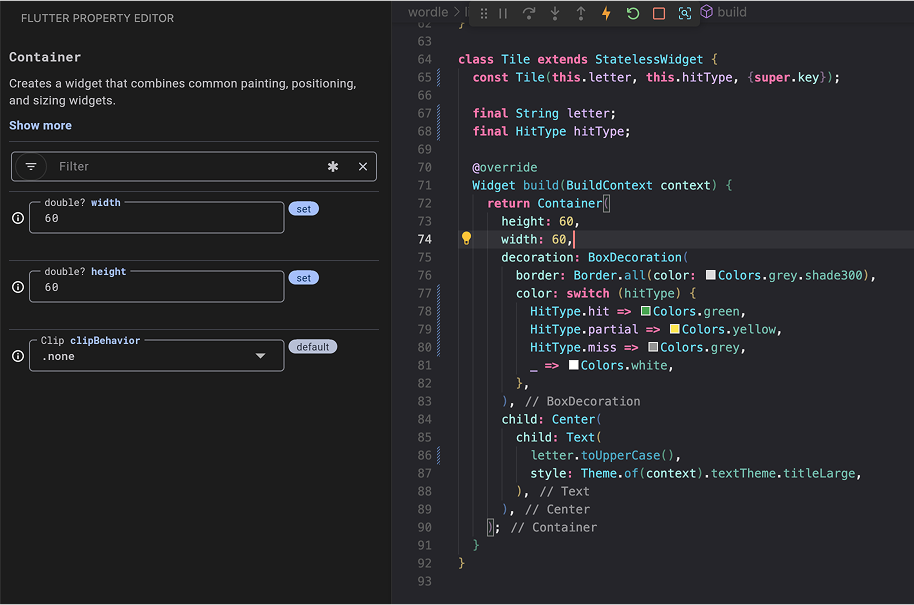
If you select the `Container` widget inside the `Tile` in the widget inspector,
the property editor shows its `width` (60), `height` (60), and the `decoration`
property.
You could then expand the `BoxDecoration` to see the `border` and `color`
properties.
如果你在 widget 检查器中选择 `Tile` 内的 `Container` widget,
属性编辑器会显示其 `width` (60)、`height` (60) 以及 `decoration` 属性。
然后你可以展开 `BoxDecoration` 以查看 `border` 和 `color` 属性。
For many properties, you can even
modify their values directly within the property editor.
For example, to quickly test how a different `width` or `height` would look
for your `Container` in the `Tile` widget,
change the numerical value in the property editor.
The tool writes this update directly back to your `.dart` source file on disk,
allowing you to instantly view the visual update on your running app
upon saving or triggering a hot reload.
This allows for rapid iteration on UI design.
对于许多属性,你甚至可以在属性编辑器中直接修改其值。
例如,要快速测试 `Tile` widget 中 `Container` 的不同 `width` 或 `height` 效果,
可在属性编辑器中更改数值。
该工具会直接将此更新写回磁盘上的 `.dart` 源文件,
让你在保存或触发热重载后立即在运行中的应用上查看视觉更新。
这让你能够快速迭代 UI 设计。
### 回顾
title: 你完成的内容
subtitle: 以下是你本课构建与学习内容的摘要。
completed: true
items:
- title: 使用 widget 检查器探索了应用的 widget 树
icon: account_tree
details: >-
widget 检查器让你可视化整个 widget 树,
选择任意 widget 以查看其属性,
并直接跳转到其源代码。
它是理解应用结构的重要工具。
- title: 了解了常见布局问题
icon: bug_report
details: >-
你学习了 **无界约束**,
这是 Flutter 开发中最常见的错误之一。
当 `Row`、`Column` 或 `ListView` 等 widget
收到无限约束时就会发生这种情况。
现在你可以在遇到这些问题时识别并修复它们。
- title: 实时试验了属性
icon: tune
details: >-
属性编辑器显示所选 widget 的所有属性,
并让你直接在磁盘上修改值,保存或触发热重载后即可
立即查看更新。
这让你在微调 UI 时能够快速迭代。
### 自测
- question: Flutter 中「无界约束」错误的常见原因是什么?
options:
- text: 在 widget 树中使用过多 StatefulWidget。
correct: false
explanation: 使用 StatefulWidget 不会导致无界约束。
- text: 将试图无限扩展的 widget 放在可滚动或 flex 容器中,且未提供适当约束。
correct: true
explanation: 例如 Row 内的 ListView,或嵌套的可滚动组件,可能收到无限约束并失败。
- text: 更改数据后忘记调用 setState。
correct: false
explanation: 未调用 setState 会导致 UI 不更新,而非约束错误。
- text: 使用 Container 时未指定颜色。
correct: false
explanation: 颜色是可选的,与布局约束无关。
- question: 你可以在 Flutter DevTools 的 Widget Inspector 中做什么?
options:
- text: 自动为你的 widget 生成单元测试。
correct: false
explanation: Widget Inspector 用于可视化和调试,而非生成测试。
- text: 可视化 widget 树,选择 widget 以查看其属性,并跳转到源代码。
correct: true
explanation: Widget Inspector 让你探索应用结构、检查 widget 属性,并导航到相应的源代码。
- text: 直接将应用部署到应用商店。
correct: false
explanation: 部署需单独处理;Widget Inspector 用于调试。
- text: 编辑应用的主题颜色和排版。
correct: false
explanation: 主题编辑需要修改代码;Widget Inspector 用于检查当前状态。
Look at the `Tile` widget's `build` method from earlier:
查看前面 `Tile` widget 的 `build` 方法:
```dart
class Tile extends StatelessWidget {
const Tile(this.letter, this.hitType, {super.key});
final String letter;
final HitType hitType;
@override
Widget build(BuildContext context) {
return Container(
width: 60,
height: 60,
decoration: BoxDecoration(
border: Border.all(color: Colors.grey.shade300),
color: switch (hitType) {
HitType.hit => Colors.green,
HitType.partial => Colors.yellow,
HitType.miss => Colors.grey,
_ => Colors.white,
},
),
);
}
}
```
If you select the `Container` widget inside the `Tile` in the widget inspector,
the property editor shows its `width` (60), `height` (60), and the `decoration`
property.
You could then expand the `BoxDecoration` to see the `border` and `color`
properties.
如果你在 widget 检查器中选择 `Tile` 内的 `Container` widget,
属性编辑器会显示其 `width` (60)、`height` (60) 以及 `decoration` 属性。
然后你可以展开 `BoxDecoration` 以查看 `border` 和 `color` 属性。
For many properties, you can even
modify their values directly within the property editor.
For example, to quickly test how a different `width` or `height` would look
for your `Container` in the `Tile` widget,
change the numerical value in the property editor.
The tool writes this update directly back to your `.dart` source file on disk,
allowing you to instantly view the visual update on your running app
upon saving or triggering a hot reload.
This allows for rapid iteration on UI design.
对于许多属性,你甚至可以在属性编辑器中直接修改其值。
例如,要快速测试 `Tile` widget 中 `Container` 的不同 `width` 或 `height` 效果,
可在属性编辑器中更改数值。
该工具会直接将此更新写回磁盘上的 `.dart` 源文件,
让你在保存或触发热重载后立即在运行中的应用上查看视觉更新。
这让你能够快速迭代 UI 设计。
### 回顾
title: 你完成的内容
subtitle: 以下是你本课构建与学习内容的摘要。
completed: true
items:
- title: 使用 widget 检查器探索了应用的 widget 树
icon: account_tree
details: >-
widget 检查器让你可视化整个 widget 树,
选择任意 widget 以查看其属性,
并直接跳转到其源代码。
它是理解应用结构的重要工具。
- title: 了解了常见布局问题
icon: bug_report
details: >-
你学习了 **无界约束**,
这是 Flutter 开发中最常见的错误之一。
当 `Row`、`Column` 或 `ListView` 等 widget
收到无限约束时就会发生这种情况。
现在你可以在遇到这些问题时识别并修复它们。
- title: 实时试验了属性
icon: tune
details: >-
属性编辑器显示所选 widget 的所有属性,
并让你直接在磁盘上修改值,保存或触发热重载后即可
立即查看更新。
这让你在微调 UI 时能够快速迭代。
### 自测
- question: Flutter 中「无界约束」错误的常见原因是什么?
options:
- text: 在 widget 树中使用过多 StatefulWidget。
correct: false
explanation: 使用 StatefulWidget 不会导致无界约束。
- text: 将试图无限扩展的 widget 放在可滚动或 flex 容器中,且未提供适当约束。
correct: true
explanation: 例如 Row 内的 ListView,或嵌套的可滚动组件,可能收到无限约束并失败。
- text: 更改数据后忘记调用 setState。
correct: false
explanation: 未调用 setState 会导致 UI 不更新,而非约束错误。
- text: 使用 Container 时未指定颜色。
correct: false
explanation: 颜色是可选的,与布局约束无关。
- question: 你可以在 Flutter DevTools 的 Widget Inspector 中做什么?
options:
- text: 自动为你的 widget 生成单元测试。
correct: false
explanation: Widget Inspector 用于可视化和调试,而非生成测试。
- text: 可视化 widget 树,选择 widget 以查看其属性,并跳转到源代码。
correct: true
explanation: Widget Inspector 让你探索应用结构、检查 widget 属性,并导航到相应的源代码。
- text: 直接将应用部署到应用商店。
correct: false
explanation: 部署需单独处理;Widget Inspector 用于调试。
- text: 编辑应用的主题颜色和排版。
correct: false
explanation: 主题编辑需要修改代码;Widget Inspector 用于检查当前状态。