# 布局
> 了解 Flutter 中常见的布局 widget。
Learn how to build layouts with common widgets like Scaffold, AppBar, Column, and Row.
学习如何使用 Scaffold、AppBar、Column 和 Row 等常见 widget 构建布局。
title: 你将完成的内容
items:
- title: 使用 Scaffold 和 AppBar 构建应用结构
icon: web_asset
- title: 使用 Column 和 Row 排列 widget
icon: view_column
- title: 根据数据动态生成 widget
icon: repeat
- title: 为游戏棋盘构建网格布局
icon: grid_view
---
### 简介
Given that Flutter is a UI toolkit,
you'll spend a lot of time creating layouts with Flutter widgets.
鉴于 Flutter 是 UI 工具包,
你将花费大量时间使用 Flutter widget 创建布局。
In this section, you'll learn how to build layouts with
some of the most common layout widgets.
This includes high-level widgets like
[`Scaffold`][] and [`AppBar`][], which lay out the structure of a screen,
as well as lower-level widgets like [`Column`][] or [`Row`][] that
lay out widgets vertically or horizontally.
在本节中,你将学习如何使用一些最常见的布局 widget 构建布局。
这包括用于布局屏幕结构的高级 widget,
例如 [`Scaffold`][] 和 [`AppBar`][],
以及用于垂直或水平布局 widget 的较低级 widget,
例如 [`Column`][] 或 [`Row`][]。
[`Scaffold`]: https://api.flutter-io.cn/flutter/material/Scaffold-class.html
[`AppBar`]: https://api.flutter-io.cn/flutter/material/AppBar-class.html
[`Column`]: https://api.flutter-io.cn/flutter/widgets/Column-class.html
[`Row`]: https://api.flutter-io.cn/flutter/widgets/Row-class.html
### `Scaffold` 和 `AppBar`
Mobile applications often have a bar at the top called an "app bar" that can
display a title, navigation controls, and/or actions.
移动应用通常在顶部有一个称为「app bar」的栏,
可以显示标题、导航控件和/或操作。
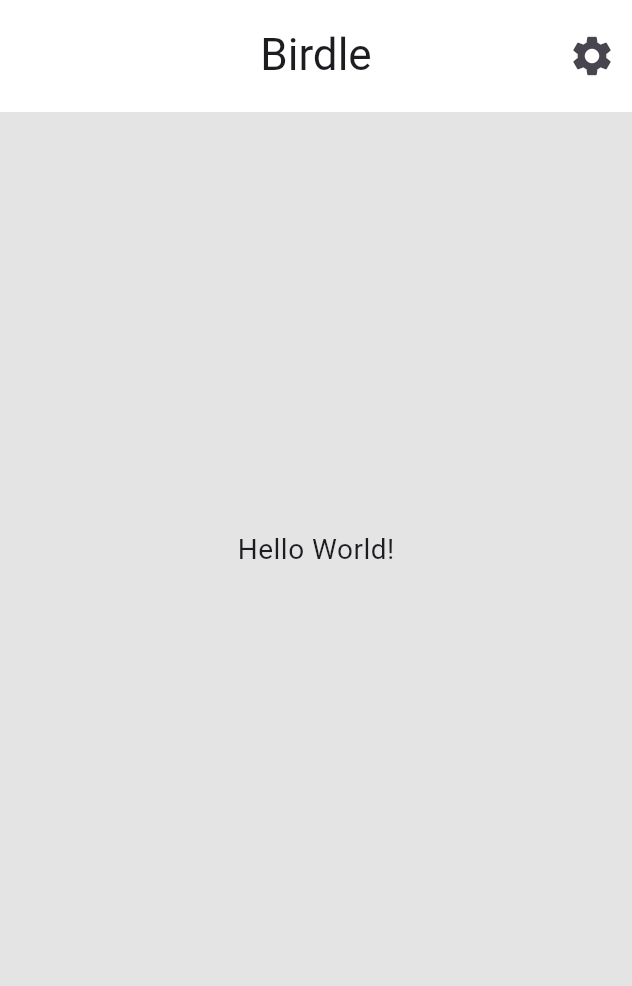 The simplest way to add an app bar to your app is by using two widgets:
`Scaffold` and `AppBar`.
为应用添加 app bar 的最简单方式是使用两个 widget:
`Scaffold` 和 `AppBar`。
`Scaffold` is a convenience widget that provides a Material-style page layout,
making it simple to add an app bar, drawer, navigation bar, and more to a page of
your app. `AppBar` is, of course, the app bar.
`Scaffold` 是一个便捷 widget,提供 Material 风格的页面布局,
可轻松为应用页面添加 app bar、抽屉、导航栏等。`AppBar` 当然就是 app bar。
The code generated from the `flutter create --empty` command already
contains an `AppBar` widget and a `Scaffold` widget.
The following code updates it to use an additional layout widget: [`Align`][].
This positions the title to the left, which would be centered by default.
The `Text` widget contains the title itself.
`flutter create --empty` 命令生成的代码已包含 `AppBar` widget 和 `Scaffold` widget。
以下代码将其更新为使用额外的布局 widget:[`Align`][]。
这会将标题定位到左侧,默认情况下标题会居中。
`Text` widget 本身包含标题。
Modify the `Scaffold` within your `MainApp` widget's `build` method.
修改 `MainApp` widget 的 `build` 方法中的 `Scaffold`。
Passing an enum or static property directly (like `Alignment.centerLeft`)
can also be shortened using [Dart's dot shorthands][] syntax,
which you can read more about on both the official Dart documentation
and the [Flutter shorthands overview][].
直接传入枚举或静态属性(如 `Alignment.centerLeft`)
也可以使用 [Dart 的点简写][Dart's dot shorthands] 语法缩短,
你可以在官方 Dart 文档和 [Flutter 简写概览][Flutter shorthands overview] 中了解更多。
[Dart's dot shorthands]: https://dart.dev/language/dot-shorthands
[Flutter shorthands overview]: /ui/dot-shorthands
```dart
class MainApp extends StatelessWidget {
const MainApp({super.key});
@override
Widget build(BuildContext context) {
return MaterialApp(
home: Scaffold(
appBar: AppBar(
title: Align(
alignment: Alignment.centerLeft,
child: Text('Birdle'),
),
),
body: Center(child: Text('Hello World!')),
),
);
}
}
```
[`Align`]: https://api.flutter-io.cn/flutter/widgets/Align-class.html
#### 更新后的 widget 树
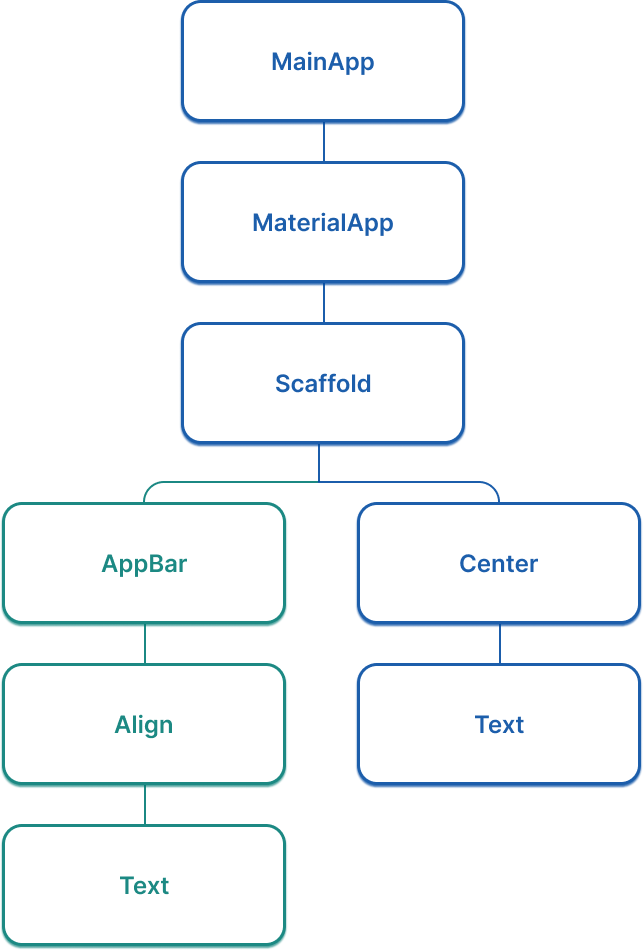
Considering your app's widget tree gets more important as your app grows.
At this point, there's a "branch" in the widget tree for the first time,
and it now looks like the following figure:
随着应用增长,关注应用的 widget 树变得越来越重要。
此时,widget 树中首次出现「分支」,
现在它看起来像下图:
The simplest way to add an app bar to your app is by using two widgets:
`Scaffold` and `AppBar`.
为应用添加 app bar 的最简单方式是使用两个 widget:
`Scaffold` 和 `AppBar`。
`Scaffold` is a convenience widget that provides a Material-style page layout,
making it simple to add an app bar, drawer, navigation bar, and more to a page of
your app. `AppBar` is, of course, the app bar.
`Scaffold` 是一个便捷 widget,提供 Material 风格的页面布局,
可轻松为应用页面添加 app bar、抽屉、导航栏等。`AppBar` 当然就是 app bar。
The code generated from the `flutter create --empty` command already
contains an `AppBar` widget and a `Scaffold` widget.
The following code updates it to use an additional layout widget: [`Align`][].
This positions the title to the left, which would be centered by default.
The `Text` widget contains the title itself.
`flutter create --empty` 命令生成的代码已包含 `AppBar` widget 和 `Scaffold` widget。
以下代码将其更新为使用额外的布局 widget:[`Align`][]。
这会将标题定位到左侧,默认情况下标题会居中。
`Text` widget 本身包含标题。
Modify the `Scaffold` within your `MainApp` widget's `build` method.
修改 `MainApp` widget 的 `build` 方法中的 `Scaffold`。
Passing an enum or static property directly (like `Alignment.centerLeft`)
can also be shortened using [Dart's dot shorthands][] syntax,
which you can read more about on both the official Dart documentation
and the [Flutter shorthands overview][].
直接传入枚举或静态属性(如 `Alignment.centerLeft`)
也可以使用 [Dart 的点简写][Dart's dot shorthands] 语法缩短,
你可以在官方 Dart 文档和 [Flutter 简写概览][Flutter shorthands overview] 中了解更多。
[Dart's dot shorthands]: https://dart.dev/language/dot-shorthands
[Flutter shorthands overview]: /ui/dot-shorthands
```dart
class MainApp extends StatelessWidget {
const MainApp({super.key});
@override
Widget build(BuildContext context) {
return MaterialApp(
home: Scaffold(
appBar: AppBar(
title: Align(
alignment: Alignment.centerLeft,
child: Text('Birdle'),
),
),
body: Center(child: Text('Hello World!')),
),
);
}
}
```
[`Align`]: https://api.flutter-io.cn/flutter/widgets/Align-class.html
#### 更新后的 widget 树
Considering your app's widget tree gets more important as your app grows.
At this point, there's a "branch" in the widget tree for the first time,
and it now looks like the following figure:
随着应用增长,关注应用的 widget 树变得越来越重要。
此时,widget 树中首次出现「分支」,
现在它看起来像下图:
 ### 为游戏页面布局创建 widget
Add the following code for a new widget,
called `GamePage`, to your `main.dart` file.
This widget will eventually display the UI elements needed for the game itself.
将以下新 widget(名为 `GamePage`)的代码
添加到你的 `main.dart` 文件中。
此 widget 最终将显示游戏本身所需的 UI 元素。
```dart title="lib/main.dart"
class GamePage extends StatelessWidget {
GamePage({super.key});
// This object is part of the game.dart file.
// It manages wordle logic, and is outside the scope of this tutorial.
final Game _game = Game();
@override
Widget build(BuildContext context) {
// TODO: Replace with screen contents
return Container();
}
}
```
Then update your `MainApp` widget to create and
display a `GamePage` widget instead of "Hello World!".
然后更新 `MainApp` widget,创建并显示 `GamePage` widget,
而不是「Hello World!」。
```dart highlightLines=14
class MainApp extends StatelessWidget {
const MainApp({super.key});
@override
Widget build(BuildContext context) {
return MaterialApp(
home: Scaffold(
appBar: AppBar(
title: const Align(
alignment: Alignment.centerLeft,
child: Text('Birdle'),
),
),
body: Center(child: GamePage()),
),
);
}
}
```
### 使用 `Column` 和 `Row` 排列 widget
The `GamePage` layout contains the grid of tiles that display a user's guesses.
`GamePage` 布局包含显示用户猜测的方块网格。
### 为游戏页面布局创建 widget
Add the following code for a new widget,
called `GamePage`, to your `main.dart` file.
This widget will eventually display the UI elements needed for the game itself.
将以下新 widget(名为 `GamePage`)的代码
添加到你的 `main.dart` 文件中。
此 widget 最终将显示游戏本身所需的 UI 元素。
```dart title="lib/main.dart"
class GamePage extends StatelessWidget {
GamePage({super.key});
// This object is part of the game.dart file.
// It manages wordle logic, and is outside the scope of this tutorial.
final Game _game = Game();
@override
Widget build(BuildContext context) {
// TODO: Replace with screen contents
return Container();
}
}
```
Then update your `MainApp` widget to create and
display a `GamePage` widget instead of "Hello World!".
然后更新 `MainApp` widget,创建并显示 `GamePage` widget,
而不是「Hello World!」。
```dart highlightLines=14
class MainApp extends StatelessWidget {
const MainApp({super.key});
@override
Widget build(BuildContext context) {
return MaterialApp(
home: Scaffold(
appBar: AppBar(
title: const Align(
alignment: Alignment.centerLeft,
child: Text('Birdle'),
),
),
body: Center(child: GamePage()),
),
);
}
}
```
### 使用 `Column` 和 `Row` 排列 widget
The `GamePage` layout contains the grid of tiles that display a user's guesses.
`GamePage` 布局包含显示用户猜测的方块网格。
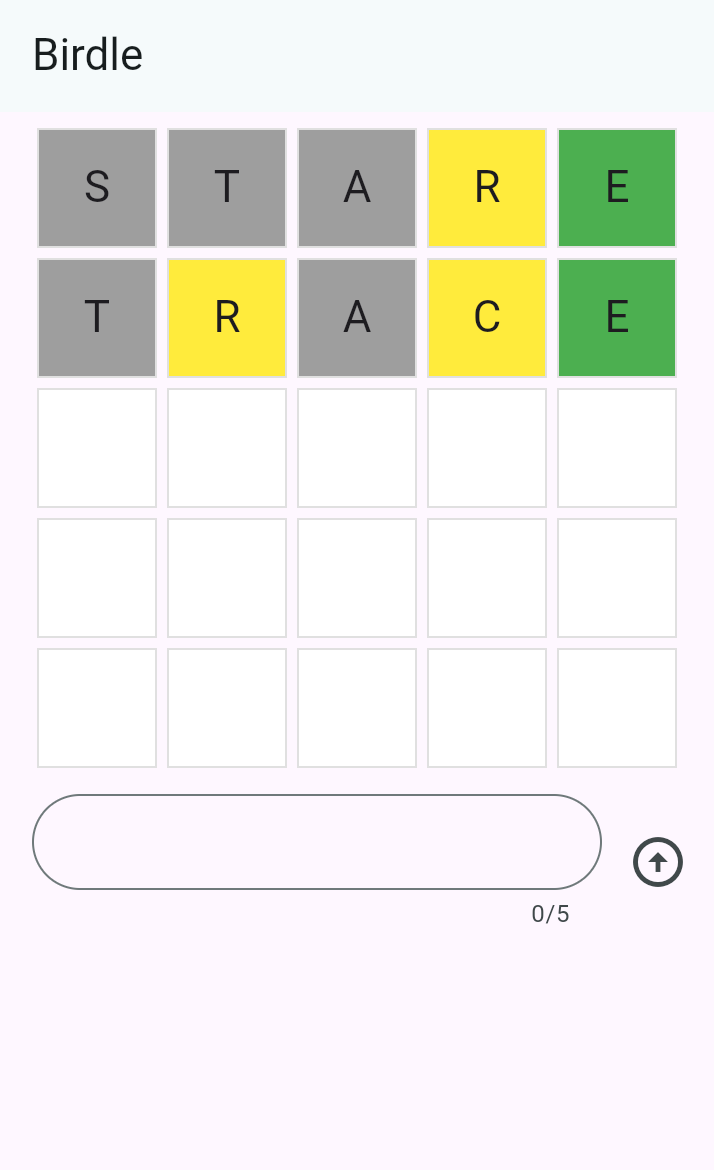 There are a number of ways you can build this layout.
The simplest is with the `Column` and `Row` widgets.
Each row contains five tiles that represent the five letters in a guess,
with five rows total.
So you'll need a single `Column` with five `Row` widgets as children,
where each row contains five children.
有多种方式可以构建此布局。
最简单的是使用 `Column` 和 `Row` widget。
每行包含五个方块,代表猜测中的五个字母,
共五行。
因此你需要一个 `Column`,其 children 为五个 `Row` widget,
每行包含五个 children。
To get started, replace the `Container` in `GamePage.build` with a
`Padding` widget with a `Column` widget as its child:
首先,将 `GamePage.build` 中的 `Container` 替换为
`Padding` widget 与 `Column` widget 组合的 widget:
```dart
class GamePage extends StatelessWidget {
GamePage({super.key});
// This manages game logic, and is out of scope for this lesson.
final Game _game = Game();
@override
Widget build(BuildContext context) {
return Padding(
padding: const EdgeInsets.all(8.0),
child: Column(
spacing: 5.0,
children: [
// Add children next.
],
),
);
}
}
```
The `spacing` property puts five pixels between each element on the main axis.
`spacing` 属性会在主轴上的每个元素之间放置 5 像素间距。
Within `Column.children`, for each element in the `_game.guesses` list,
add a `Row` widget as a child.
在 `Column.children` 中,对 `_game.guesses` 列表中的每个元素,
添加一个 `Row` widget 作为 child。
:::note
This `guesses` list is a **fixed-size** list, starting with five
elements, one for each *potential* guess.
The list will always contain exactly five elements,
and therefore will always render five rows.
此 `guesses` 列表是 **固定大小** 的列表,以五个
元素开始,每个元素对应一次 **潜在** 猜测。
列表始终恰好包含五个元素,
因此始终会渲染五行。
:::
```dart
class GamePage extends StatelessWidget {
GamePage({super.key});
// This manages game logic, and is out of scope for this lesson.
final Game _game = Game();
@override
Widget build(BuildContext context) {
return Padding(
padding: const EdgeInsets.all(8.0),
child: Column(
spacing: 5.0,
children: [
for (final guess in _game.guesses)
Row(
spacing: 5.0,
children: [
// We'll add the tiles here later.
],
),
],
),
);
}
}
```
The `for` loop in the `children` list is called a [collection for element][],
a Dart syntax that allows you to iteratively add items to a collection
when it is built at runtime.
This syntactic sugar makes it easier for you to work
with collections of widgets,
providing a declarative alternative to the following:
`children` 列表中的 `for` 循环称为 [collection for element][],
这是一种 Dart 语法,让你在运行时构建集合时
迭代地向集合添加项。
这种语法糖让你更容易
处理 widget 集合,
为以下内容提供声明式替代方案:
```dart
[..._game.guesses.map((guess) => Row(/* ... */))],
```
In this case, it adds five `Row` widgets to the column,
one for each guess on the `Game` object.
此处,它向 column 添加五个 `Row` widget,
每个对应 `Game` 对象上的一次猜测。
[collection for element]: https://dart.cn/language/collections#for-element
#### 更新后的 widget 树
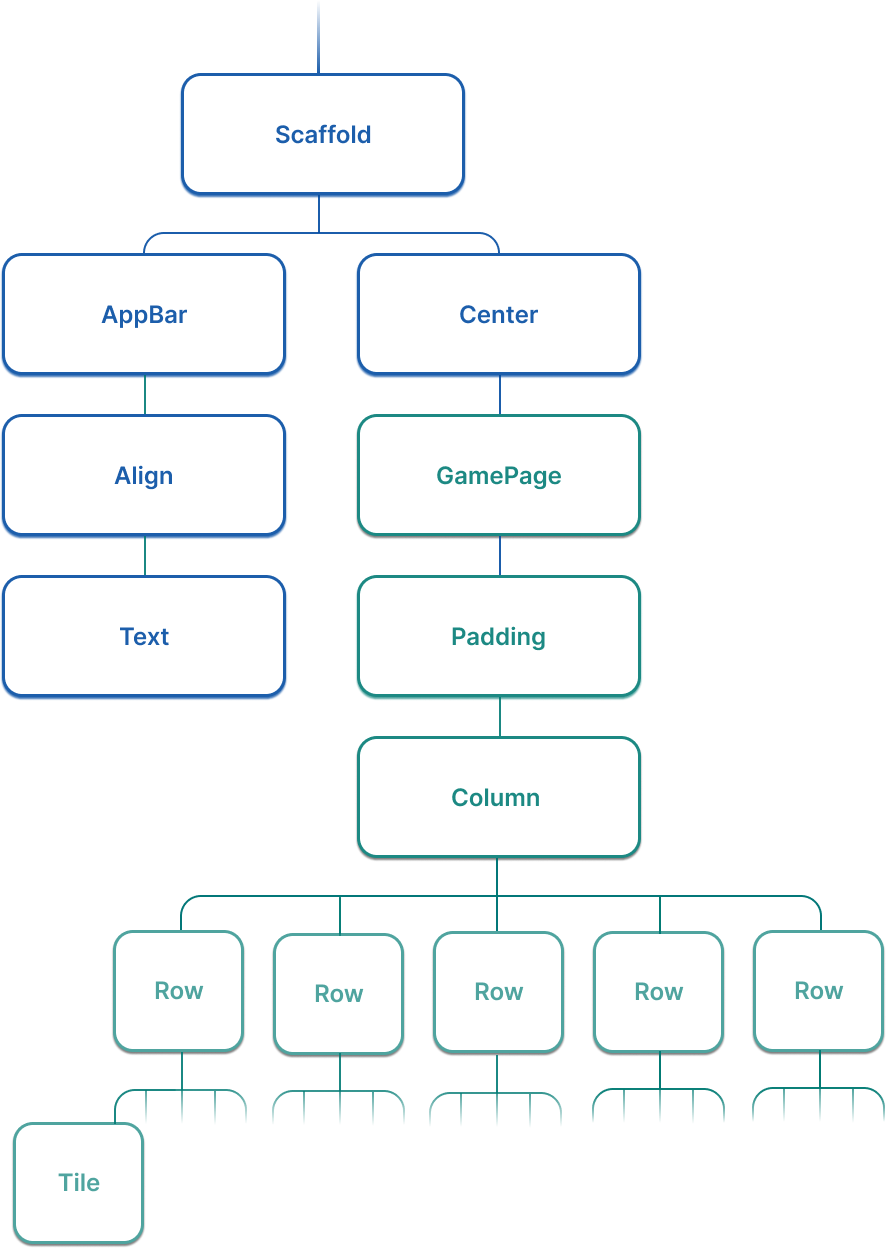
The widget tree for this app has expanded significantly in this lesson.
Now, it looks more like the following (abridged) figure:
本课中,此应用的 widget 树已显著扩展。
现在,它更像下面的(节选)图:
There are a number of ways you can build this layout.
The simplest is with the `Column` and `Row` widgets.
Each row contains five tiles that represent the five letters in a guess,
with five rows total.
So you'll need a single `Column` with five `Row` widgets as children,
where each row contains five children.
有多种方式可以构建此布局。
最简单的是使用 `Column` 和 `Row` widget。
每行包含五个方块,代表猜测中的五个字母,
共五行。
因此你需要一个 `Column`,其 children 为五个 `Row` widget,
每行包含五个 children。
To get started, replace the `Container` in `GamePage.build` with a
`Padding` widget with a `Column` widget as its child:
首先,将 `GamePage.build` 中的 `Container` 替换为
`Padding` widget 与 `Column` widget 组合的 widget:
```dart
class GamePage extends StatelessWidget {
GamePage({super.key});
// This manages game logic, and is out of scope for this lesson.
final Game _game = Game();
@override
Widget build(BuildContext context) {
return Padding(
padding: const EdgeInsets.all(8.0),
child: Column(
spacing: 5.0,
children: [
// Add children next.
],
),
);
}
}
```
The `spacing` property puts five pixels between each element on the main axis.
`spacing` 属性会在主轴上的每个元素之间放置 5 像素间距。
Within `Column.children`, for each element in the `_game.guesses` list,
add a `Row` widget as a child.
在 `Column.children` 中,对 `_game.guesses` 列表中的每个元素,
添加一个 `Row` widget 作为 child。
:::note
This `guesses` list is a **fixed-size** list, starting with five
elements, one for each *potential* guess.
The list will always contain exactly five elements,
and therefore will always render five rows.
此 `guesses` 列表是 **固定大小** 的列表,以五个
元素开始,每个元素对应一次 **潜在** 猜测。
列表始终恰好包含五个元素,
因此始终会渲染五行。
:::
```dart
class GamePage extends StatelessWidget {
GamePage({super.key});
// This manages game logic, and is out of scope for this lesson.
final Game _game = Game();
@override
Widget build(BuildContext context) {
return Padding(
padding: const EdgeInsets.all(8.0),
child: Column(
spacing: 5.0,
children: [
for (final guess in _game.guesses)
Row(
spacing: 5.0,
children: [
// We'll add the tiles here later.
],
),
],
),
);
}
}
```
The `for` loop in the `children` list is called a [collection for element][],
a Dart syntax that allows you to iteratively add items to a collection
when it is built at runtime.
This syntactic sugar makes it easier for you to work
with collections of widgets,
providing a declarative alternative to the following:
`children` 列表中的 `for` 循环称为 [collection for element][],
这是一种 Dart 语法,让你在运行时构建集合时
迭代地向集合添加项。
这种语法糖让你更容易
处理 widget 集合,
为以下内容提供声明式替代方案:
```dart
[..._game.guesses.map((guess) => Row(/* ... */))],
```
In this case, it adds five `Row` widgets to the column,
one for each guess on the `Game` object.
此处,它向 column 添加五个 `Row` widget,
每个对应 `Game` 对象上的一次猜测。
[collection for element]: https://dart.cn/language/collections#for-element
#### 更新后的 widget 树
The widget tree for this app has expanded significantly in this lesson.
Now, it looks more like the following (abridged) figure:
本课中,此应用的 widget 树已显著扩展。
现在,它更像下面的(节选)图:
 :::note 挑战
Add a `Tile` to each row for each letter allowed in the guess.
Each element in `guess` is a [record][] with the type
`({String char, HitType type})`.
为每次猜测中允许的每个字母,向每行添加一个 `Tile`。
`guess` 中的每个元素都是类型为 `({String char, HitType type})` 的 [record][]。
Use a nested loop to iterate over the letters in each guess.
使用嵌套循环遍历每次猜测中的字母。
**Solution:**
**解答:**
```dart title="lib/main.dart" collapsed
class GamePage extends StatelessWidget {
GamePage({super.key});
// This manages game logic, and is out of scope for this lesson.
final Game _game = Game();
@override
Widget build(BuildContext context) {
return Padding(
padding: const EdgeInsets.all(8.0),
child: Column(
spacing: 5.0,
children: [
for (final guess in _game.guesses)
Row(
spacing: 5.0,
children: [
for (final letter in guess) Tile(letter.char, letter.type),
],
),
],
),
);
}
}
```
:::
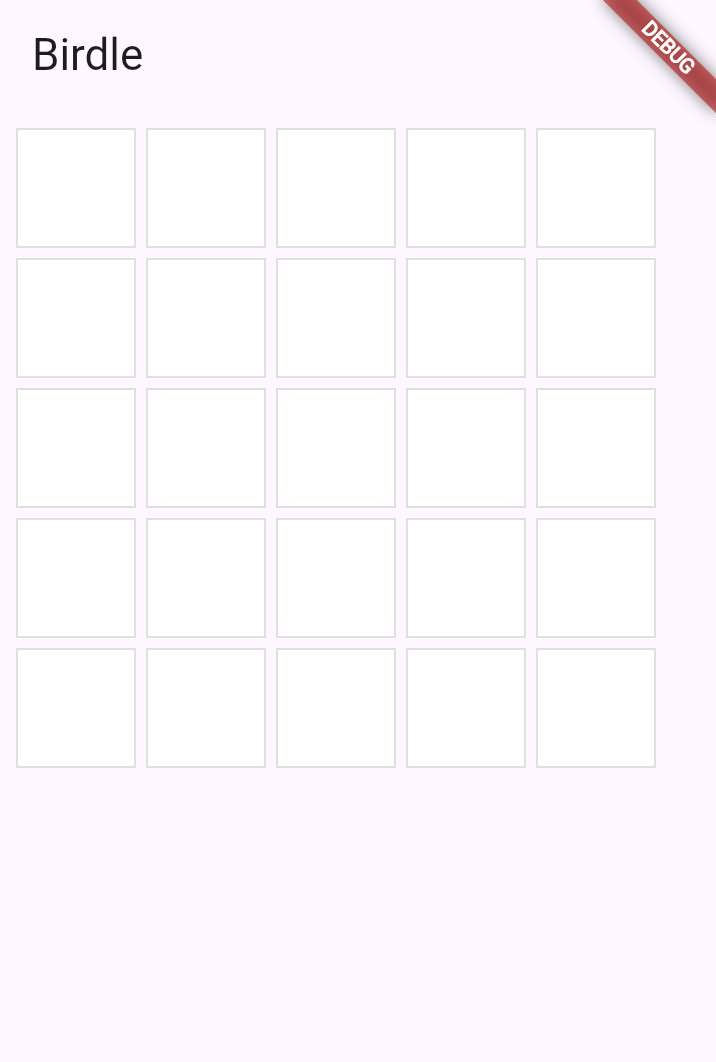
When you reload your app, you should see a 5x5 grid of white squares.
热重载应用后,你应看到 5x5 的白色方块网格。
:::note 挑战
Add a `Tile` to each row for each letter allowed in the guess.
Each element in `guess` is a [record][] with the type
`({String char, HitType type})`.
为每次猜测中允许的每个字母,向每行添加一个 `Tile`。
`guess` 中的每个元素都是类型为 `({String char, HitType type})` 的 [record][]。
Use a nested loop to iterate over the letters in each guess.
使用嵌套循环遍历每次猜测中的字母。
**Solution:**
**解答:**
```dart title="lib/main.dart" collapsed
class GamePage extends StatelessWidget {
GamePage({super.key});
// This manages game logic, and is out of scope for this lesson.
final Game _game = Game();
@override
Widget build(BuildContext context) {
return Padding(
padding: const EdgeInsets.all(8.0),
child: Column(
spacing: 5.0,
children: [
for (final guess in _game.guesses)
Row(
spacing: 5.0,
children: [
for (final letter in guess) Tile(letter.char, letter.type),
],
),
],
),
);
}
}
```
:::
When you reload your app, you should see a 5x5 grid of white squares.
热重载应用后,你应看到 5x5 的白色方块网格。
 [record]: https://dart.cn/language/records
### 回顾
title: 你完成的内容
subtitle: 以下是你本课构建与学习内容的摘要。
completed: true
items:
- title: 使用 Scaffold 和 AppBar 构建应用结构
icon: web_asset
details: >-
你使用 `Scaffold` 提供 Material 风格的页面布局,使用
`AppBar` 在应用顶部添加标题栏。
这些高级 widget 为你的应用提供标准且精致的结构。
- title: 使用 Column 和 Row 排列 widget
icon: view_column
details: >-
`Column` 垂直排列 widget,`Row` 水平排列 widget。
这些是你在 Flutter 中会经常使用的基本布局 widget。
`spacing` 属性在 children 之间添加一致的间距。
- title: 根据数据动态生成 widget
icon: repeat
details: >-
你使用 collection for element 从列表构建 widget。
这种声明式方法让你构建的用户界面
能自动并在视觉上反映你的数据,
这是 Flutter 开发的核心模式。
- title: 构建了游戏棋盘网格
icon: grid_view
details: >-
通过在 `Column` 内嵌套 `Row` widget 并使用嵌套循环,
你创建了 5x5 的 `Tile` widget 网格。
你的应用现在显示完整的游戏棋盘布局!
### 自测
- question: Column 和 Row widget 的主要区别是什么?
options:
- text: Column 用于滚动内容;Row 用于静态内容。
correct: false
explanation: Column 和 Row 都用于布局,而非滚动。滚动请使用 ListView 或 SingleChildScrollView。
- text: Column 垂直排列 children;Row 水平排列 children。
correct: true
explanation: Column 沿垂直轴布局其 children,Row 使用水平轴。
- text: Column 可以有无限个 children;Row 限制为两个。
correct: false
explanation: 两种 widget 都可以有任意数量的 children。
- text: Column 需要 Scaffold 父级;Row 不需要。
correct: false
explanation: 两种 widget 都不需要 Scaffold 作为父级。
- question: Scaffold widget 在 Flutter 应用中提供什么?
options:
- text: 仅为页面提供背景色。
correct: false
explanation: Scaffold 提供的远不止这些,包括 app bar、抽屉等的结构。
- text: Material 风格的页面布局,带有 app bar、body、drawer 等插槽。
correct: true
explanation: Scaffold 是提供标准 Material 页面结构的便捷 widget。
- text: 在不同页面之间导航的方式。
correct: false
explanation: 导航由 Navigator 处理,而非 Scaffold。
- text: 页面的自动状态管理。
correct: false
explanation: Scaffold 不管理状态;你需要使用 StatefulWidget 或状态管理方案。
[record]: https://dart.cn/language/records
### 回顾
title: 你完成的内容
subtitle: 以下是你本课构建与学习内容的摘要。
completed: true
items:
- title: 使用 Scaffold 和 AppBar 构建应用结构
icon: web_asset
details: >-
你使用 `Scaffold` 提供 Material 风格的页面布局,使用
`AppBar` 在应用顶部添加标题栏。
这些高级 widget 为你的应用提供标准且精致的结构。
- title: 使用 Column 和 Row 排列 widget
icon: view_column
details: >-
`Column` 垂直排列 widget,`Row` 水平排列 widget。
这些是你在 Flutter 中会经常使用的基本布局 widget。
`spacing` 属性在 children 之间添加一致的间距。
- title: 根据数据动态生成 widget
icon: repeat
details: >-
你使用 collection for element 从列表构建 widget。
这种声明式方法让你构建的用户界面
能自动并在视觉上反映你的数据,
这是 Flutter 开发的核心模式。
- title: 构建了游戏棋盘网格
icon: grid_view
details: >-
通过在 `Column` 内嵌套 `Row` widget 并使用嵌套循环,
你创建了 5x5 的 `Tile` widget 网格。
你的应用现在显示完整的游戏棋盘布局!
### 自测
- question: Column 和 Row widget 的主要区别是什么?
options:
- text: Column 用于滚动内容;Row 用于静态内容。
correct: false
explanation: Column 和 Row 都用于布局,而非滚动。滚动请使用 ListView 或 SingleChildScrollView。
- text: Column 垂直排列 children;Row 水平排列 children。
correct: true
explanation: Column 沿垂直轴布局其 children,Row 使用水平轴。
- text: Column 可以有无限个 children;Row 限制为两个。
correct: false
explanation: 两种 widget 都可以有任意数量的 children。
- text: Column 需要 Scaffold 父级;Row 不需要。
correct: false
explanation: 两种 widget 都不需要 Scaffold 作为父级。
- question: Scaffold widget 在 Flutter 应用中提供什么?
options:
- text: 仅为页面提供背景色。
correct: false
explanation: Scaffold 提供的远不止这些,包括 app bar、抽屉等的结构。
- text: Material 风格的页面布局,带有 app bar、body、drawer 等插槽。
correct: true
explanation: Scaffold 是提供标准 Material 页面结构的便捷 widget。
- text: 在不同页面之间导航的方式。
correct: false
explanation: 导航由 Navigator 处理,而非 Scaffold。
- text: 页面的自动状态管理。
correct: false
explanation: Scaffold 不管理状态;你需要使用 StatefulWidget 或状态管理方案。