# 用户输入
> 使用按钮和文本字段接受用户输入。
Learn to build text inputs, manage text with controllers, and handle user actions with buttons.
学习构建文本输入、使用 controller 管理文本,以及使用按钮处理用户操作。
title: 你将完成的内容
items:
- title: 使用 TextField 构建文本输入 widget
icon: text_fields
- title: 使用 TextEditingController 管理文本
icon: edit_note
- title: 控制输入焦点以改善用户体验
icon: center_focus_strong
- title: 使用回调和按钮处理用户操作
icon: touch_app
---
### 介绍
The app will display the user's guesses in the `Tile` widgets,
but it needs a way for the user to input those guesses.
In this lesson, build that functionality with two interaction widgets:
[`TextField`][] and [`IconButton`][].
应用会在 `Tile` widget 中显示用户的猜测,
但还需要让用户输入这些猜测的方式。
在本课中,使用两个交互 widget 构建该功能:
[`TextField`][] 和 [`IconButton`][]。
[`TextField`]: https://api.flutter-io.cn/flutter/material/TextField-class.html
[`IconButton`]: https://api.flutter-io.cn/flutter/material/IconButton-class.html
### 实现回调函数
To allow users to type in their guesses,
you'll create a dedicated widget named `GuessInput`.
First, create the basic structure for your `GuessInput` widget that
requires a callback function as an argument.
Name the callback function `onSubmitGuess`.
为了让用户输入猜测,
你将创建一个名为 `GuessInput` 的专用 widget。
首先,为 `GuessInput` widget 创建基本结构,该结构
需要一个回调函数作为参数。
将回调函数命名为 `onSubmitGuess`。
Add the following code to your `main.dart` file.
将以下代码添加到你的 `main.dart` 文件中。
```dart
class GuessInput extends StatelessWidget {
GuessInput({super.key, required this.onSubmitGuess});
final void Function(String) onSubmitGuess;
@override
Widget build(BuildContext context) {
// You'll build the UI in the next steps.
return Container(); // Placeholder
}
}
```
The line `final void Function(String) onSubmitGuess;`
declares a `final` member of the class called `onSubmitGuess`
that has the type `void Function(String)`.
This function takes a single `String` argument (the user's guess) and
doesn't return any value (denoted by `void`).
`final void Function(String) onSubmitGuess;` 这一行
声明了类中名为 `onSubmitGuess` 的 `final` 成员,
其类型为 `void Function(String)`。
该函数接受单个 `String` 参数(用户的猜测),
且不返回任何值(由 `void` 表示)。
This callback tells us that the logic that
actually handles the user's guess will be written elsewhere.
It's a good practice for interactive widgets to
use callback functions to keep the widget that handles interactions reusable and
decoupled from any specific functionality.
此回调表明,实际处理
用户猜测的逻辑将在别处编写。
对于交互 widget,使用回调函数是良好实践,可保持处理交互的 widget 可复用且
与任何具体功能解耦。
By the end of this lesson, the passed-in `onSubmitGuess` function
is called when a user enters a guess.
First, you'll need to build the visual parts of this widget.
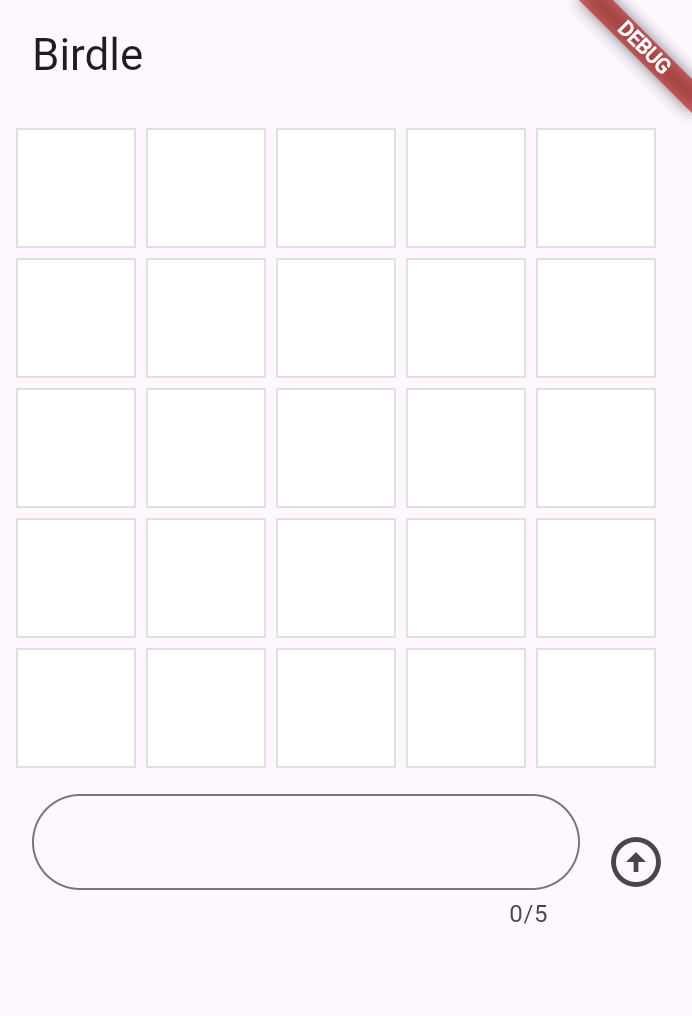
This is what the widget will look like.
到本课结束时,当用户输入猜测时会调用传入的 `onSubmitGuess` 函数。
首先,你需要构建此 widget 的视觉部分。
widget 将如下所示。
 ### `TextField` widget
Given that the text field and button are displayed side-by-side,
create them as a `Row` widget.
Replace the `Container` placeholder in your `build` method with
a `Row` containing an `Expanded` `TextField`:
由于文本字段和按钮并排显示,
将它们创建为 `Row` widget。
将 `build` 方法中的 `Container` 占位符替换为
包含 `Expanded` `TextField` 的 `Row`:
```dart
class GuessInput extends StatelessWidget {
GuessInput({super.key, required this.onSubmitGuess});
final void Function(String) onSubmitGuess;
@override
Widget build(BuildContext context) {
return Row(
children: [
Expanded(
child: Padding(
padding: const EdgeInsets.all(8.0),
child: TextField(
maxLength: 5,
decoration: InputDecoration(
border: OutlineInputBorder(
borderRadius: BorderRadius.all(Radius.circular(35)),
),
),
),
),
),
],
);
}
}
```
You have seen some of these widgets in previous lessons:
`Row` and `Padding`. New, though, is the [`Expanded`][] widget.
When a child of a `Row` (or `Column`) is wrapped in `Expanded`,
it tells that child to fill all the available space along the main axis
(horizontal for`Row`, vertical for `Column`) that
hasn't been taken by other children.
This makes the `TextField` stretch to take up all the space *except*
what's taken by other widgets in the row.
你在之前的课程中见过其中一些 widget:
`Row` 和 `Padding`。不过,[`Expanded`][] widget 是新的。
当 `Row`(或 `Column`)的子 widget 被 `Expanded` 包裹时,
它会告诉该子 widget 沿主轴填满所有可用空间
(`Row` 为水平方向,`Column` 为垂直方向),
前提是其他子 widget 尚未占用。
这使 `TextField` 拉伸以占据行中 **除** 其他 widget 占用空间外的所有空间。
:::tip
`Expanded` is often the solution to "[unbounded width/height][]" exceptions.
`Expanded` 通常是解决 "[unbounded width/height][]" 异常的方案。
:::
The `TextField` widget is also new in this lesson and is the star of the show.
This is the basic Flutter widget for text input.
`TextField` widget 在本课中也是新的,并且是重头戏。
这是 Flutter 用于文本输入的基本 widget。
Thus far, `TextField` has the following configuration.
到目前为止,`TextField` 具有以下配置。
- It's decorated with a rounded border.
Notice that the decoration configuration is
very similar to how a `Container` and boxes are decorated.
它使用圆角边框装饰。
请注意,装饰配置与 `Container` 和盒子的装饰方式非常相似。
- Its `maxLength` property is set to 5 because the game
only allows guesses of 5-letter words.
其 `maxLength` 属性设置为 5,
因为游戏仅允许 5 个字母的单词猜测。
[`Expanded`]: https://api.flutter-io.cn/flutter/widgets/Expanded-class.html
[unbounded width/height]: https://www.youtube.com/watch?v=jckqXR5CrPI
### 使用 `TextEditingController` 处理文本
Next, you need a way to manage the text that
the user types into the input field.
For this, use a [`TextEditingController`][].
接下来,你需要一种方式来管理用户输入到输入框中的文本。
为此,请使用 [`TextEditingController`][]。
```dart
class GuessInput extends StatelessWidget {
GuessInput({super.key, required this.onSubmitGuess});
final void Function(String) onSubmitGuess;
// NEW
final TextEditingController _textEditingController = TextEditingController();
@override
Widget build(BuildContext context) {
return Row(
children: [
Expanded(
child: Padding(
padding: const EdgeInsets.all(8.0),
child: TextField(
maxLength: 5,
decoration: InputDecoration(
border: OutlineInputBorder(
borderRadius: BorderRadius.all(Radius.circular(35)),
),
),
),
),
),
//
],
);
}
}
```
A `TextEditingController` is used to
read, clear, and modify the text in a `TextField`.
To use it, pass it into the `TextField`.
`TextEditingController` 用于读取、清除和修改 `TextField` 中的文本。
使用时,将其传入 `TextField`。
```dart
class GuessInput extends StatelessWidget {
GuessInput({super.key, required this.onSubmitGuess});
final void Function(String) onSubmitGuess;
final TextEditingController _textEditingController = TextEditingController();
@override
Widget build(BuildContext context) {
return Row(
children: [
Expanded(
child: Padding(
padding: const EdgeInsets.all(8.0),
child: TextField(
maxLength: 5,
decoration: const InputDecoration(
border: OutlineInputBorder(
borderRadius: BorderRadius.all(Radius.circular(35)),
),
),
controller: _textEditingController, // NEW
),
),
),
],
);
}
}
```
Now, when a user inputs text, you can
capture it with the `_textEditingController`, but
you'll need to know _when_ to capture it.
The simplest way to react to input is by
using the `TextField.onSubmitted` argument.
This argument accepts a callback, and the callback is triggered whenever
the user presses the "Enter" key on the keyboard while the text field has focus.
现在,当用户输入文本时,
你可以通过 `_textEditingController` 捕获它,
但你需要知道 **何时** 捕获。
响应输入的最简单方式是使用 `TextField.onSubmitted` 参数。
该参数接受回调,每当文本字段获得焦点时用户在键盘上按下「Enter」键,
就会触发该回调。
For now, ensure that this works by
adding the following callback to `TextField.onSubmitted`:
目前,通过将以下回调添加到 `TextField.onSubmitted` 来确保其正常工作:
```dart
class GuessInput extends StatelessWidget {
GuessInput({super.key, required this.onSubmitGuess});
final void Function(String) onSubmitGuess;
final TextEditingController _textEditingController = TextEditingController();
@override
Widget build(BuildContext context) {
return Row(
children: [
Expanded(
child: Padding(
padding: const EdgeInsets.all(8.0),
child: TextField(
maxLength: 5,
decoration: const InputDecoration(
border: OutlineInputBorder(
borderRadius: BorderRadius.all(Radius.circular(35)),
),
),
controller: _textEditingController,
onSubmitted: (input) {
// NEW
print(_textEditingController.text); // Temporary
},
),
),
),
],
);
}
}
```
In this case,
you could print the `input` passed to the `onSubmitted` callback directly,
but a better user experience clears the text after each guess:
You need a `TextEditingController` to do that. Update the code as follows:
在这种情况下,
你可以直接打印传给 `onSubmitted` 回调的 `input`,
但更好的用户体验是在每次猜测后清除文本:
你需要 `TextEditingController` 来实现这一点。按如下方式更新代码:
```dart
class GuessInput extends StatelessWidget {
GuessInput({super.key, required this.onSubmitGuess});
final void Function(String) onSubmitGuess;
final TextEditingController _textEditingController = TextEditingController();
@override
Widget build(BuildContext context) {
return Row(
children: [
Expanded(
child: Padding(
padding: const EdgeInsets.all(8.0),
child: TextField(
maxLength: 5,
decoration: const InputDecoration(
border: OutlineInputBorder(
borderRadius: BorderRadius.all(Radius.circular(35)),
),
),
controller: _textEditingController,
onSubmitted: (_) {
// UPDATED
print(_textEditingController.text); // Temporary
_textEditingController.clear(); // NEW
},
),
),
),
],
);
}
}
```
:::note
In Dart, it's good practice to use the `_` [wildcard][] to
hide the input to a function that'll never be used.
The preceding example does so.
在 Dart 中,对永远不会使用的函数输入使用 `_` [wildcard][] 是良好实践。
前面的示例正是这样做的。
:::
[`TextEditingController`]: https://api.flutter-io.cn/flutter/widgets/TextEditingController-class.html
[wildcard]: https://dart.cn/language/variables#wildcard-variables
### 获取输入焦点
Often, you want a specific input or widget to
automatically gain focus without the user taking action.
In this app, for example, the only thing a user can do is enter a guess,
so the `TextField` should be focused automatically when the app launches.
And after the user enters a guess, the focus should stay
in the `TextField` so they can enter their next guess.
通常,你希望特定输入或 widget 在用户无需操作的情况下自动获得焦点。
例如,在本应用中,用户唯一能做的就是输入猜测,
因此应用启动时 `TextField` 应自动获得焦点。
用户输入猜测后,焦点应保持在 `TextField` 中,以便输入下一次猜测。
To resolve the first focus issue,
set up the `autofocus` property on the `TextField`.
要解决第一个焦点问题,
请在 `TextField` 上设置 `autofocus` 属性。
```dart
class GuessInput extends StatelessWidget {
GuessInput({super.key, required this.onSubmitGuess});
final void Function(String) onSubmitGuess;
final TextEditingController _textEditingController = TextEditingController();
@override
Widget build(BuildContext context) {
return Row(
children: [
Expanded(
child: Padding(
padding: const EdgeInsets.all(8.0),
child: TextField(
maxLength: 5,
decoration: const InputDecoration(
border: OutlineInputBorder(
borderRadius: BorderRadius.all(Radius.circular(35)),
),
),
controller: _textEditingController,
autofocus: true, // NEW
onSubmitted: (input) {
print(input); // Temporary
_textEditingController.clear();
},
),
),
),
],
);
}
}
```
The second issue requires you to
use a [`FocusNode`][] to manage the keyboard focus.
You can use `FocusNode` to request that a `TextField` gain focus,
(making the keyboard appear on mobile),
or to know when a field has focus.
第二个问题需要你使用 [`FocusNode`][] 管理键盘焦点。
你可以使用 `FocusNode` 请求 `TextField` 获得焦点
(在移动端使键盘出现),或了解字段何时具有焦点。
First, create a `FocusNode` in the `GuessInput` class:
首先,在 `GuessInput` 类中创建 `FocusNode`:
```dart
class GuessInput extends StatelessWidget {
GuessInput({super.key, required this.onSubmitGuess});
final void Function(String) onSubmitGuess;
final TextEditingController _textEditingController = TextEditingController();
final FocusNode _focusNode = FocusNode(); // NEW
@override
Widget build(BuildContext context) {
// ...
return Container();
}
}
```
Then, use the `FocusNode` to request focus whenever
the `TextField` is submitted after the controller is cleared:
然后,在 controller 清除后提交 `TextField` 时,
使用 `FocusNode` 请求焦点:
```dart
class GuessInput extends StatelessWidget {
GuessInput({super.key, required this.onSubmitGuess});
final void Function(String) onSubmitGuess;
final TextEditingController _textEditingController = TextEditingController();
final FocusNode _focusNode = FocusNode();
@override
Widget build(BuildContext context) {
return Row(
children: [
Expanded(
child: Padding(
padding: const EdgeInsets.all(8.0),
child: TextField(
maxLength: 5,
decoration: const InputDecoration(
border: OutlineInputBorder(
borderRadius: BorderRadius.all(Radius.circular(35)),
),
),
controller: _textEditingController,
autofocus: true,
focusNode: _focusNode, // NEW
onSubmitted: (input) {
print(input); // Temporary
_textEditingController.clear();
_focusNode.requestFocus(); // NEW
},
),
),
),
],
);
}
}
```
Now, when you press Enter after inputting text,
you can continue typing.
现在,输入文本后按 Enter,
你可以继续输入。
[`FocusNode`]: https://api.flutter-io.cn/flutter/widgets/FocusNode-class.html
### 使用输入
Finally, you need to handle the text that the user enters.
Recall that the constructor for `GuessInput` requires a
callback called `onSubmitGuess`.
In `GuessInput`, you need to use that callback.
Replace the `print` statement with a call to that function.
最后,你需要处理用户输入的文本。
回想一下,`GuessInput` 的构造函数需要一个名为 `onSubmitGuess` 的回调。
在 `GuessInput` 中,你需要使用该回调。
将 `print` 语句替换为对该函数的调用。
```dart
class GuessInput extends StatelessWidget {
GuessInput({super.key, required this.onSubmitGuess});
final void Function(String) onSubmitGuess;
final TextEditingController _textEditingController = TextEditingController();
final FocusNode _focusNode = FocusNode();
@override
Widget build(BuildContext context) {
return Row(
children: [
Expanded(
child: Padding(
padding: const EdgeInsets.all(8.0),
child: TextField(
maxLength: 5,
decoration: const InputDecoration(
border: OutlineInputBorder(
borderRadius: BorderRadius.all(Radius.circular(35)),
),
),
controller: _textEditingController,
autofocus: true,
focusNode: _focusNode,
onSubmitted: (input) {
onSubmitGuess(_textEditingController.text.trim());
_textEditingController.clear();
_focusNode.requestFocus();
},
),
),
),
],
);
}
}
```
:::note
The `trim` function prevents whitespace from being entered;
otherwise, the user could enter a four-letter word plus a space character.
`trim` 函数可防止输入空白字符;
否则,用户可能输入四个字母的单词加一个空格字符。
:::
The remaining functionality is handled in the parent widget, `GamePage`.
In the `build` method of that class,
under the `Row` widgets in the `Column` widget's children,
add the `GuessInput` widget:
其余功能由父 widget `GamePage` 处理。
在该类的 `build` 方法中,
在 `Column` widget 的 children 中 `Row` widget 下方,
添加 `GuessInput` widget:
```dart
class GamePage extends StatelessWidget {
GamePage({super.key});
final Game _game = Game();
@override
Widget build(BuildContext context) {
return Padding(
padding: const EdgeInsets.all(8.0),
child: Column(
spacing: 5.0,
children: [
for (final guess in _game.guesses)
Row(
spacing: 5.0,
children: [
for (final letter in guess) Tile(letter.char, letter.type),
],
),
GuessInput(
onSubmitGuess: (guess) {
// TODO, handle guess
print(guess); // Temporary
},
),
],
),
);
}
}
```
For the moment, this only prints the guess to
prove that it's wired up correctly.
Submitting the guess requires using the functionality of a `StatefulWidget`,
which you'll do in the next lesson.
目前,这只会打印猜测以证明连接正确。
提交猜测需要使用 `StatefulWidget` 的功能,
你将在下一课中完成。
### 按钮
To improve the UX on mobile and reflect well-known UI practices,
there should also be a button that can submit the guess.
为改善移动端 UX 并体现常见的 UI 实践,
还应有可提交猜测的按钮。
There are many button widgets built into Flutter, like [`TextButton`][],
[`ElevatedButton`][], and the button you'll use now: [`IconButton`][].
All of these buttons (and many other interaction widgets) require two
arguments (in addition to their optional arguments):
Flutter 内置了许多按钮 widget,例如 [`TextButton`][]、
[`ElevatedButton`][],以及你现在将使用的 [`IconButton`][]。
所有这些按钮(以及许多其他交互 widget)都需要两个
参数(除可选参数外):
- A callback function passed to `onPressed`.
传给 `onPressed` 的回调函数。
- A widget that makes up the content of the button (often `Text` or an `Icon`).
构成按钮内容的 widget(通常是 `Text` 或 `Icon`)。
Add an icon button to the row widget's children list in the `GuessInput` widget,
and give it an [`Icon`][] widget to display.
The `Icon` widget requires configuration; in this case,
the `padding` property sets the padding between the
edge of the button and the icon it wraps to zero.
This removes the default padding and makes the button smaller.
在 `GuessInput` widget 中将图标按钮添加到 row widget 的 children 列表,
并为其提供要显示的 [`Icon`][] widget。
`Icon` widget 需要配置;在本例中,
`padding` 属性将按钮边缘与其包裹的图标之间的内边距设置为零。
这会移除默认内边距并使按钮更小。
```dart
class GuessInput extends StatelessWidget {
GuessInput({super.key, required this.onSubmitGuess});
final void Function(String) onSubmitGuess;
final TextEditingController _textEditingController = TextEditingController();
final FocusNode _focusNode = FocusNode();
@override
Widget build(BuildContext context) {
return Row(
children: [
Expanded(child: Container()),
IconButton(
padding: EdgeInsets.zero,
icon: const Icon(Icons.arrow_circle_up),
onPressed: null,
),
],
);
}
}
```
The `IconButton.onPressed` callback should look familiar:
`IconButton.onPressed` 回调应该看起来很熟悉:
```dart
class GuessInput extends StatelessWidget {
GuessInput({super.key, required this.onSubmitGuess});
final void Function(String) onSubmitGuess;
final TextEditingController _textEditingController = TextEditingController();
final FocusNode _focusNode = FocusNode();
@override
Widget build(BuildContext context) {
return Row(
children: [
Expanded(child: Container()),
IconButton(
padding: EdgeInsets.zero,
icon: const Icon(Icons.arrow_circle_up),
onPressed: () {
onSubmitGuess(_textEditingController.text.trim());
_textEditingController.clear();
_focusNode.requestFocus();
},
),
],
);
}
}
```
This method does the same as the `onSubmitted` callback on the `TextField`.
此方法与 `TextField` 上的 `onSubmitted` 回调作用相同。
[`Icon`]: https://api.flutter-io.cn/flutter/material/Icons-class.html
[`TextButton`]: https://api.flutter-io.cn/flutter/material/TextButton-class.html
[`ElevatedButton`]: https://api.flutter-io.cn/flutter/material/ElevatedButton-class.html
[`IconButton`]: https://api.flutter-io.cn/flutter/material/IconButton-class.html
:::note 挑战 - 共享 "on submitted" 逻辑
You might be thinking, "Shouldn't we abstract these methods into one
function and pass it to both inputs?"
You could, and as your app grows in complexity, you probably should.
That said, the callbacks `IconButton.onPressed` and `TextField.onSubmitted` have
different signatures, so it's not completely straight-forward.
你可能在想:「我们是否应该将这些方法抽象为一个函数并传给两个输入?」
可以,随着应用复杂度增加,你很可能应该这样做。
也就是说,`IconButton.onPressed` 和 `TextField.onSubmitted` 的回调签名不同,
因此逻辑重复并不是很清晰。
Refactor the code such that the logic inside this method isn't repeated.
重构代码,使此方法内的逻辑不重复。
**Solution:**
**解答:**
```dart title="solution.dart" collapsed
class GuessInput extends StatelessWidget {
GuessInput({super.key, required this.onSubmitGuess});
final void Function(String) onSubmitGuess;
final TextEditingController _textEditingController = TextEditingController();
final FocusNode _focusNode = FocusNode();
void _onSubmit() {
onSubmitGuess(_textEditingController.text);
_textEditingController.clear();
_focusNode.requestFocus();
}
@override
Widget build(BuildContext context) {
return Row(
children: [
Expanded(
child: Padding(
padding: const EdgeInsets.all(8.0),
child: TextField(
maxLength: 5,
focusNode: _focusNode,
autofocus: true,
decoration: const InputDecoration(
border: OutlineInputBorder(
borderRadius: BorderRadius.all(Radius.circular(35)),
),
),
controller: _textEditingController,
onSubmitted: (value) {
_onSubmit();
},
),
),
),
IconButton(
padding: EdgeInsets.zero,
icon: const Icon(Icons.arrow_circle_up),
onPressed: _onSubmit,
),
],
);
}
}
```
:::
### 回顾
title: 你完成的内容
subtitle: 以下是你本课构建与学习内容的摘要。
completed: true
items:
- title: 使用 TextField 构建了文本输入 widget
icon: text_fields
details: >-
你创建了带有用于文本输入的 `TextField` 的 `GuessInput` widget。
你为其配置了圆角边框、字符限制,并
使用 `Expanded` 使其填满行中的可用空间。
- title: 使用 TextEditingController 管理了文本
icon: edit_note
details: >-
`TextEditingController` 让你读取和修改文本字段内容。
你使用 `.text` 捕获用户输入,并在提交后使用 `.clear()` 清除
字段。
- title: 控制了输入焦点以打造精致的 UX
icon: center_focus_strong
details: >-
你使用 `autofocus` 在启动时聚焦文本字段,并使用 `FocusNode`
配合 `requestFocus()` 在每次猜测后保持焦点。
这些细节让你的应用感觉响应迅速且制作精良。
- title: 使用回调和按钮处理了用户操作
icon: touch_app
details: >-
为响应用户输入,
你指定了 `onSubmitted` 和 `onPressed` 等回调函数。
将回调函数作为构造函数参数传入可保持
widget 可复用且与具体逻辑解耦。
### 自测
- question: 如何以编程方式读取或清除 TextField 中的文本?
options:
- text: 直接访问 TextField 的 text 属性。
correct: false
explanation: TextField 不暴露 text 属性;你需要 controller。
- text: 使用附加到 TextField 的 TextEditingController。
correct: true
explanation: TextEditingController 提供 text 属性以读取值,并提供 clear() 方法以重置。
- text: 监听 onChanged 回调并将值存储在变量中。
correct: false
explanation: onChanged 可用于读取,但清除需要 TextEditingController。
- text: 调用 TextField.getText() 方法。
correct: false
explanation: TextField 没有 getText 方法;请改用 TextEditingController。
- question: 如何以编程方式将焦点移到特定 TextField?
options:
- text: "直接调用 `TextField.focus()`。"
correct: false
explanation: TextField 没有 focus 方法;你需要使用 FocusNode。
- text: "在运行时将 `autofocus` 属性设置为 true。"
correct: false
explanation: autofocus 属性仅在初始构建时有效,不能用于之后移动焦点。
- text: "使用 FocusNode 并对其调用 `requestFocus()`。"
correct: true
explanation: "FocusNode 让你控制焦点,调用 `requestFocus()` 会将焦点移到其关联的 widget。"
- text: 将 TextField 包裹在 GestureDetector 中并以编程方式点击。
correct: false
explanation: 焦点不是这样管理的;FocusNode 才是正确方式。
### `TextField` widget
Given that the text field and button are displayed side-by-side,
create them as a `Row` widget.
Replace the `Container` placeholder in your `build` method with
a `Row` containing an `Expanded` `TextField`:
由于文本字段和按钮并排显示,
将它们创建为 `Row` widget。
将 `build` 方法中的 `Container` 占位符替换为
包含 `Expanded` `TextField` 的 `Row`:
```dart
class GuessInput extends StatelessWidget {
GuessInput({super.key, required this.onSubmitGuess});
final void Function(String) onSubmitGuess;
@override
Widget build(BuildContext context) {
return Row(
children: [
Expanded(
child: Padding(
padding: const EdgeInsets.all(8.0),
child: TextField(
maxLength: 5,
decoration: InputDecoration(
border: OutlineInputBorder(
borderRadius: BorderRadius.all(Radius.circular(35)),
),
),
),
),
),
],
);
}
}
```
You have seen some of these widgets in previous lessons:
`Row` and `Padding`. New, though, is the [`Expanded`][] widget.
When a child of a `Row` (or `Column`) is wrapped in `Expanded`,
it tells that child to fill all the available space along the main axis
(horizontal for`Row`, vertical for `Column`) that
hasn't been taken by other children.
This makes the `TextField` stretch to take up all the space *except*
what's taken by other widgets in the row.
你在之前的课程中见过其中一些 widget:
`Row` 和 `Padding`。不过,[`Expanded`][] widget 是新的。
当 `Row`(或 `Column`)的子 widget 被 `Expanded` 包裹时,
它会告诉该子 widget 沿主轴填满所有可用空间
(`Row` 为水平方向,`Column` 为垂直方向),
前提是其他子 widget 尚未占用。
这使 `TextField` 拉伸以占据行中 **除** 其他 widget 占用空间外的所有空间。
:::tip
`Expanded` is often the solution to "[unbounded width/height][]" exceptions.
`Expanded` 通常是解决 "[unbounded width/height][]" 异常的方案。
:::
The `TextField` widget is also new in this lesson and is the star of the show.
This is the basic Flutter widget for text input.
`TextField` widget 在本课中也是新的,并且是重头戏。
这是 Flutter 用于文本输入的基本 widget。
Thus far, `TextField` has the following configuration.
到目前为止,`TextField` 具有以下配置。
- It's decorated with a rounded border.
Notice that the decoration configuration is
very similar to how a `Container` and boxes are decorated.
它使用圆角边框装饰。
请注意,装饰配置与 `Container` 和盒子的装饰方式非常相似。
- Its `maxLength` property is set to 5 because the game
only allows guesses of 5-letter words.
其 `maxLength` 属性设置为 5,
因为游戏仅允许 5 个字母的单词猜测。
[`Expanded`]: https://api.flutter-io.cn/flutter/widgets/Expanded-class.html
[unbounded width/height]: https://www.youtube.com/watch?v=jckqXR5CrPI
### 使用 `TextEditingController` 处理文本
Next, you need a way to manage the text that
the user types into the input field.
For this, use a [`TextEditingController`][].
接下来,你需要一种方式来管理用户输入到输入框中的文本。
为此,请使用 [`TextEditingController`][]。
```dart
class GuessInput extends StatelessWidget {
GuessInput({super.key, required this.onSubmitGuess});
final void Function(String) onSubmitGuess;
// NEW
final TextEditingController _textEditingController = TextEditingController();
@override
Widget build(BuildContext context) {
return Row(
children: [
Expanded(
child: Padding(
padding: const EdgeInsets.all(8.0),
child: TextField(
maxLength: 5,
decoration: InputDecoration(
border: OutlineInputBorder(
borderRadius: BorderRadius.all(Radius.circular(35)),
),
),
),
),
),
//
],
);
}
}
```
A `TextEditingController` is used to
read, clear, and modify the text in a `TextField`.
To use it, pass it into the `TextField`.
`TextEditingController` 用于读取、清除和修改 `TextField` 中的文本。
使用时,将其传入 `TextField`。
```dart
class GuessInput extends StatelessWidget {
GuessInput({super.key, required this.onSubmitGuess});
final void Function(String) onSubmitGuess;
final TextEditingController _textEditingController = TextEditingController();
@override
Widget build(BuildContext context) {
return Row(
children: [
Expanded(
child: Padding(
padding: const EdgeInsets.all(8.0),
child: TextField(
maxLength: 5,
decoration: const InputDecoration(
border: OutlineInputBorder(
borderRadius: BorderRadius.all(Radius.circular(35)),
),
),
controller: _textEditingController, // NEW
),
),
),
],
);
}
}
```
Now, when a user inputs text, you can
capture it with the `_textEditingController`, but
you'll need to know _when_ to capture it.
The simplest way to react to input is by
using the `TextField.onSubmitted` argument.
This argument accepts a callback, and the callback is triggered whenever
the user presses the "Enter" key on the keyboard while the text field has focus.
现在,当用户输入文本时,
你可以通过 `_textEditingController` 捕获它,
但你需要知道 **何时** 捕获。
响应输入的最简单方式是使用 `TextField.onSubmitted` 参数。
该参数接受回调,每当文本字段获得焦点时用户在键盘上按下「Enter」键,
就会触发该回调。
For now, ensure that this works by
adding the following callback to `TextField.onSubmitted`:
目前,通过将以下回调添加到 `TextField.onSubmitted` 来确保其正常工作:
```dart
class GuessInput extends StatelessWidget {
GuessInput({super.key, required this.onSubmitGuess});
final void Function(String) onSubmitGuess;
final TextEditingController _textEditingController = TextEditingController();
@override
Widget build(BuildContext context) {
return Row(
children: [
Expanded(
child: Padding(
padding: const EdgeInsets.all(8.0),
child: TextField(
maxLength: 5,
decoration: const InputDecoration(
border: OutlineInputBorder(
borderRadius: BorderRadius.all(Radius.circular(35)),
),
),
controller: _textEditingController,
onSubmitted: (input) {
// NEW
print(_textEditingController.text); // Temporary
},
),
),
),
],
);
}
}
```
In this case,
you could print the `input` passed to the `onSubmitted` callback directly,
but a better user experience clears the text after each guess:
You need a `TextEditingController` to do that. Update the code as follows:
在这种情况下,
你可以直接打印传给 `onSubmitted` 回调的 `input`,
但更好的用户体验是在每次猜测后清除文本:
你需要 `TextEditingController` 来实现这一点。按如下方式更新代码:
```dart
class GuessInput extends StatelessWidget {
GuessInput({super.key, required this.onSubmitGuess});
final void Function(String) onSubmitGuess;
final TextEditingController _textEditingController = TextEditingController();
@override
Widget build(BuildContext context) {
return Row(
children: [
Expanded(
child: Padding(
padding: const EdgeInsets.all(8.0),
child: TextField(
maxLength: 5,
decoration: const InputDecoration(
border: OutlineInputBorder(
borderRadius: BorderRadius.all(Radius.circular(35)),
),
),
controller: _textEditingController,
onSubmitted: (_) {
// UPDATED
print(_textEditingController.text); // Temporary
_textEditingController.clear(); // NEW
},
),
),
),
],
);
}
}
```
:::note
In Dart, it's good practice to use the `_` [wildcard][] to
hide the input to a function that'll never be used.
The preceding example does so.
在 Dart 中,对永远不会使用的函数输入使用 `_` [wildcard][] 是良好实践。
前面的示例正是这样做的。
:::
[`TextEditingController`]: https://api.flutter-io.cn/flutter/widgets/TextEditingController-class.html
[wildcard]: https://dart.cn/language/variables#wildcard-variables
### 获取输入焦点
Often, you want a specific input or widget to
automatically gain focus without the user taking action.
In this app, for example, the only thing a user can do is enter a guess,
so the `TextField` should be focused automatically when the app launches.
And after the user enters a guess, the focus should stay
in the `TextField` so they can enter their next guess.
通常,你希望特定输入或 widget 在用户无需操作的情况下自动获得焦点。
例如,在本应用中,用户唯一能做的就是输入猜测,
因此应用启动时 `TextField` 应自动获得焦点。
用户输入猜测后,焦点应保持在 `TextField` 中,以便输入下一次猜测。
To resolve the first focus issue,
set up the `autofocus` property on the `TextField`.
要解决第一个焦点问题,
请在 `TextField` 上设置 `autofocus` 属性。
```dart
class GuessInput extends StatelessWidget {
GuessInput({super.key, required this.onSubmitGuess});
final void Function(String) onSubmitGuess;
final TextEditingController _textEditingController = TextEditingController();
@override
Widget build(BuildContext context) {
return Row(
children: [
Expanded(
child: Padding(
padding: const EdgeInsets.all(8.0),
child: TextField(
maxLength: 5,
decoration: const InputDecoration(
border: OutlineInputBorder(
borderRadius: BorderRadius.all(Radius.circular(35)),
),
),
controller: _textEditingController,
autofocus: true, // NEW
onSubmitted: (input) {
print(input); // Temporary
_textEditingController.clear();
},
),
),
),
],
);
}
}
```
The second issue requires you to
use a [`FocusNode`][] to manage the keyboard focus.
You can use `FocusNode` to request that a `TextField` gain focus,
(making the keyboard appear on mobile),
or to know when a field has focus.
第二个问题需要你使用 [`FocusNode`][] 管理键盘焦点。
你可以使用 `FocusNode` 请求 `TextField` 获得焦点
(在移动端使键盘出现),或了解字段何时具有焦点。
First, create a `FocusNode` in the `GuessInput` class:
首先,在 `GuessInput` 类中创建 `FocusNode`:
```dart
class GuessInput extends StatelessWidget {
GuessInput({super.key, required this.onSubmitGuess});
final void Function(String) onSubmitGuess;
final TextEditingController _textEditingController = TextEditingController();
final FocusNode _focusNode = FocusNode(); // NEW
@override
Widget build(BuildContext context) {
// ...
return Container();
}
}
```
Then, use the `FocusNode` to request focus whenever
the `TextField` is submitted after the controller is cleared:
然后,在 controller 清除后提交 `TextField` 时,
使用 `FocusNode` 请求焦点:
```dart
class GuessInput extends StatelessWidget {
GuessInput({super.key, required this.onSubmitGuess});
final void Function(String) onSubmitGuess;
final TextEditingController _textEditingController = TextEditingController();
final FocusNode _focusNode = FocusNode();
@override
Widget build(BuildContext context) {
return Row(
children: [
Expanded(
child: Padding(
padding: const EdgeInsets.all(8.0),
child: TextField(
maxLength: 5,
decoration: const InputDecoration(
border: OutlineInputBorder(
borderRadius: BorderRadius.all(Radius.circular(35)),
),
),
controller: _textEditingController,
autofocus: true,
focusNode: _focusNode, // NEW
onSubmitted: (input) {
print(input); // Temporary
_textEditingController.clear();
_focusNode.requestFocus(); // NEW
},
),
),
),
],
);
}
}
```
Now, when you press Enter after inputting text,
you can continue typing.
现在,输入文本后按 Enter,
你可以继续输入。
[`FocusNode`]: https://api.flutter-io.cn/flutter/widgets/FocusNode-class.html
### 使用输入
Finally, you need to handle the text that the user enters.
Recall that the constructor for `GuessInput` requires a
callback called `onSubmitGuess`.
In `GuessInput`, you need to use that callback.
Replace the `print` statement with a call to that function.
最后,你需要处理用户输入的文本。
回想一下,`GuessInput` 的构造函数需要一个名为 `onSubmitGuess` 的回调。
在 `GuessInput` 中,你需要使用该回调。
将 `print` 语句替换为对该函数的调用。
```dart
class GuessInput extends StatelessWidget {
GuessInput({super.key, required this.onSubmitGuess});
final void Function(String) onSubmitGuess;
final TextEditingController _textEditingController = TextEditingController();
final FocusNode _focusNode = FocusNode();
@override
Widget build(BuildContext context) {
return Row(
children: [
Expanded(
child: Padding(
padding: const EdgeInsets.all(8.0),
child: TextField(
maxLength: 5,
decoration: const InputDecoration(
border: OutlineInputBorder(
borderRadius: BorderRadius.all(Radius.circular(35)),
),
),
controller: _textEditingController,
autofocus: true,
focusNode: _focusNode,
onSubmitted: (input) {
onSubmitGuess(_textEditingController.text.trim());
_textEditingController.clear();
_focusNode.requestFocus();
},
),
),
),
],
);
}
}
```
:::note
The `trim` function prevents whitespace from being entered;
otherwise, the user could enter a four-letter word plus a space character.
`trim` 函数可防止输入空白字符;
否则,用户可能输入四个字母的单词加一个空格字符。
:::
The remaining functionality is handled in the parent widget, `GamePage`.
In the `build` method of that class,
under the `Row` widgets in the `Column` widget's children,
add the `GuessInput` widget:
其余功能由父 widget `GamePage` 处理。
在该类的 `build` 方法中,
在 `Column` widget 的 children 中 `Row` widget 下方,
添加 `GuessInput` widget:
```dart
class GamePage extends StatelessWidget {
GamePage({super.key});
final Game _game = Game();
@override
Widget build(BuildContext context) {
return Padding(
padding: const EdgeInsets.all(8.0),
child: Column(
spacing: 5.0,
children: [
for (final guess in _game.guesses)
Row(
spacing: 5.0,
children: [
for (final letter in guess) Tile(letter.char, letter.type),
],
),
GuessInput(
onSubmitGuess: (guess) {
// TODO, handle guess
print(guess); // Temporary
},
),
],
),
);
}
}
```
For the moment, this only prints the guess to
prove that it's wired up correctly.
Submitting the guess requires using the functionality of a `StatefulWidget`,
which you'll do in the next lesson.
目前,这只会打印猜测以证明连接正确。
提交猜测需要使用 `StatefulWidget` 的功能,
你将在下一课中完成。
### 按钮
To improve the UX on mobile and reflect well-known UI practices,
there should also be a button that can submit the guess.
为改善移动端 UX 并体现常见的 UI 实践,
还应有可提交猜测的按钮。
There are many button widgets built into Flutter, like [`TextButton`][],
[`ElevatedButton`][], and the button you'll use now: [`IconButton`][].
All of these buttons (and many other interaction widgets) require two
arguments (in addition to their optional arguments):
Flutter 内置了许多按钮 widget,例如 [`TextButton`][]、
[`ElevatedButton`][],以及你现在将使用的 [`IconButton`][]。
所有这些按钮(以及许多其他交互 widget)都需要两个
参数(除可选参数外):
- A callback function passed to `onPressed`.
传给 `onPressed` 的回调函数。
- A widget that makes up the content of the button (often `Text` or an `Icon`).
构成按钮内容的 widget(通常是 `Text` 或 `Icon`)。
Add an icon button to the row widget's children list in the `GuessInput` widget,
and give it an [`Icon`][] widget to display.
The `Icon` widget requires configuration; in this case,
the `padding` property sets the padding between the
edge of the button and the icon it wraps to zero.
This removes the default padding and makes the button smaller.
在 `GuessInput` widget 中将图标按钮添加到 row widget 的 children 列表,
并为其提供要显示的 [`Icon`][] widget。
`Icon` widget 需要配置;在本例中,
`padding` 属性将按钮边缘与其包裹的图标之间的内边距设置为零。
这会移除默认内边距并使按钮更小。
```dart
class GuessInput extends StatelessWidget {
GuessInput({super.key, required this.onSubmitGuess});
final void Function(String) onSubmitGuess;
final TextEditingController _textEditingController = TextEditingController();
final FocusNode _focusNode = FocusNode();
@override
Widget build(BuildContext context) {
return Row(
children: [
Expanded(child: Container()),
IconButton(
padding: EdgeInsets.zero,
icon: const Icon(Icons.arrow_circle_up),
onPressed: null,
),
],
);
}
}
```
The `IconButton.onPressed` callback should look familiar:
`IconButton.onPressed` 回调应该看起来很熟悉:
```dart
class GuessInput extends StatelessWidget {
GuessInput({super.key, required this.onSubmitGuess});
final void Function(String) onSubmitGuess;
final TextEditingController _textEditingController = TextEditingController();
final FocusNode _focusNode = FocusNode();
@override
Widget build(BuildContext context) {
return Row(
children: [
Expanded(child: Container()),
IconButton(
padding: EdgeInsets.zero,
icon: const Icon(Icons.arrow_circle_up),
onPressed: () {
onSubmitGuess(_textEditingController.text.trim());
_textEditingController.clear();
_focusNode.requestFocus();
},
),
],
);
}
}
```
This method does the same as the `onSubmitted` callback on the `TextField`.
此方法与 `TextField` 上的 `onSubmitted` 回调作用相同。
[`Icon`]: https://api.flutter-io.cn/flutter/material/Icons-class.html
[`TextButton`]: https://api.flutter-io.cn/flutter/material/TextButton-class.html
[`ElevatedButton`]: https://api.flutter-io.cn/flutter/material/ElevatedButton-class.html
[`IconButton`]: https://api.flutter-io.cn/flutter/material/IconButton-class.html
:::note 挑战 - 共享 "on submitted" 逻辑
You might be thinking, "Shouldn't we abstract these methods into one
function and pass it to both inputs?"
You could, and as your app grows in complexity, you probably should.
That said, the callbacks `IconButton.onPressed` and `TextField.onSubmitted` have
different signatures, so it's not completely straight-forward.
你可能在想:「我们是否应该将这些方法抽象为一个函数并传给两个输入?」
可以,随着应用复杂度增加,你很可能应该这样做。
也就是说,`IconButton.onPressed` 和 `TextField.onSubmitted` 的回调签名不同,
因此逻辑重复并不是很清晰。
Refactor the code such that the logic inside this method isn't repeated.
重构代码,使此方法内的逻辑不重复。
**Solution:**
**解答:**
```dart title="solution.dart" collapsed
class GuessInput extends StatelessWidget {
GuessInput({super.key, required this.onSubmitGuess});
final void Function(String) onSubmitGuess;
final TextEditingController _textEditingController = TextEditingController();
final FocusNode _focusNode = FocusNode();
void _onSubmit() {
onSubmitGuess(_textEditingController.text);
_textEditingController.clear();
_focusNode.requestFocus();
}
@override
Widget build(BuildContext context) {
return Row(
children: [
Expanded(
child: Padding(
padding: const EdgeInsets.all(8.0),
child: TextField(
maxLength: 5,
focusNode: _focusNode,
autofocus: true,
decoration: const InputDecoration(
border: OutlineInputBorder(
borderRadius: BorderRadius.all(Radius.circular(35)),
),
),
controller: _textEditingController,
onSubmitted: (value) {
_onSubmit();
},
),
),
),
IconButton(
padding: EdgeInsets.zero,
icon: const Icon(Icons.arrow_circle_up),
onPressed: _onSubmit,
),
],
);
}
}
```
:::
### 回顾
title: 你完成的内容
subtitle: 以下是你本课构建与学习内容的摘要。
completed: true
items:
- title: 使用 TextField 构建了文本输入 widget
icon: text_fields
details: >-
你创建了带有用于文本输入的 `TextField` 的 `GuessInput` widget。
你为其配置了圆角边框、字符限制,并
使用 `Expanded` 使其填满行中的可用空间。
- title: 使用 TextEditingController 管理了文本
icon: edit_note
details: >-
`TextEditingController` 让你读取和修改文本字段内容。
你使用 `.text` 捕获用户输入,并在提交后使用 `.clear()` 清除
字段。
- title: 控制了输入焦点以打造精致的 UX
icon: center_focus_strong
details: >-
你使用 `autofocus` 在启动时聚焦文本字段,并使用 `FocusNode`
配合 `requestFocus()` 在每次猜测后保持焦点。
这些细节让你的应用感觉响应迅速且制作精良。
- title: 使用回调和按钮处理了用户操作
icon: touch_app
details: >-
为响应用户输入,
你指定了 `onSubmitted` 和 `onPressed` 等回调函数。
将回调函数作为构造函数参数传入可保持
widget 可复用且与具体逻辑解耦。
### 自测
- question: 如何以编程方式读取或清除 TextField 中的文本?
options:
- text: 直接访问 TextField 的 text 属性。
correct: false
explanation: TextField 不暴露 text 属性;你需要 controller。
- text: 使用附加到 TextField 的 TextEditingController。
correct: true
explanation: TextEditingController 提供 text 属性以读取值,并提供 clear() 方法以重置。
- text: 监听 onChanged 回调并将值存储在变量中。
correct: false
explanation: onChanged 可用于读取,但清除需要 TextEditingController。
- text: 调用 TextField.getText() 方法。
correct: false
explanation: TextField 没有 getText 方法;请改用 TextEditingController。
- question: 如何以编程方式将焦点移到特定 TextField?
options:
- text: "直接调用 `TextField.focus()`。"
correct: false
explanation: TextField 没有 focus 方法;你需要使用 FocusNode。
- text: "在运行时将 `autofocus` 属性设置为 true。"
correct: false
explanation: autofocus 属性仅在初始构建时有效,不能用于之后移动焦点。
- text: "使用 FocusNode 并对其调用 `requestFocus()`。"
correct: true
explanation: "FocusNode 让你控制焦点,调用 `requestFocus()` 会将焦点移到其关联的 widget。"
- text: 将 TextField 包裹在 GestureDetector 中并以编程方式点击。
correct: false
explanation: 焦点不是这样管理的;FocusNode 才是正确方式。